Clarification
An entry appears here when an operation could not complete automatically and needs a deliberate decision. Two kinds exist: Failure — automatic processing failed permanently, every retry is exhausted — and Review — a route deliberately routed the operation to manual decision without a technical error. The number of open entries is shown as a counter next to the Clarification menu item and at the top of the list, updating automatically in real time.
Permissions
The page is visible once you have the Operations — Clarification permission (Read or Full). The Reprocess and Close actions are only available with the same permission at the Full level.
List view
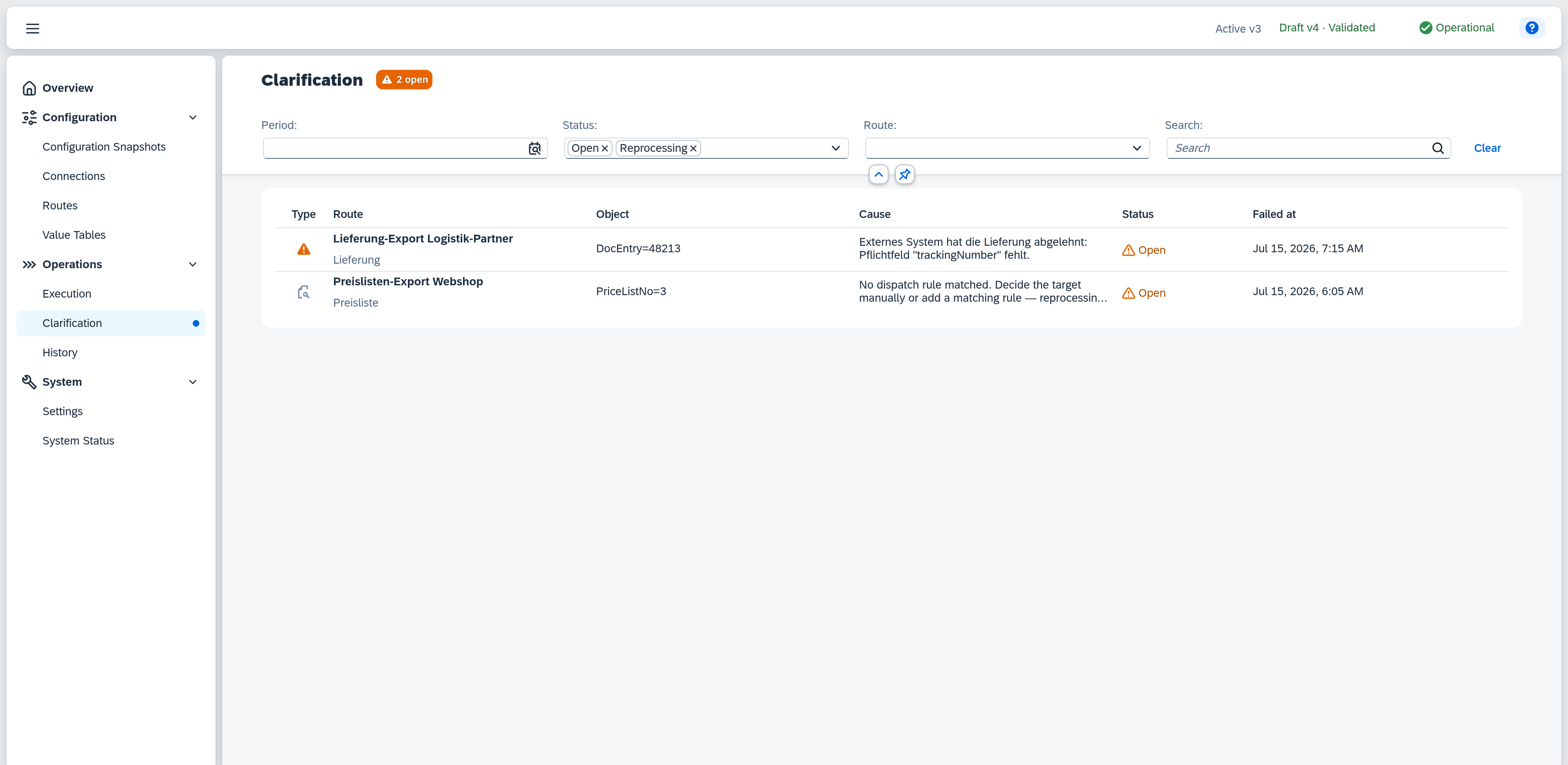
By default the list shows only open entries. Click a row to open the detail view on the right.
Filters
| Filter | Effect |
|---|---|
| Period | Time window for the display, based on the time of failure. |
| Status | Open, Reprocessing, Resolved, or Closed; multi-select. Open and Reprocessing are selected by default — the entries that are not yet finished. |
| Route | Restricts the list to the entries of a specific route. Only lists routes that currently have entries. |
| Search | Free-text search across object type, object key, and cause. |
The filters you set live in the page's address. A link to Clarification therefore carries them: you can bookmark it or pass it on, and whoever opens it sees the same work list. Reloading the page restores it just as well, and closing the detail view returns to the filtered list.
Columns
| Column | Content |
|---|---|
| Type | Icon per kind: ⚠ Failure (critical, orange) or 🔍 Review (neutral, grey). |
| Route | Name of the route that executed the operation, with the object type shown below it. |
| Object | Business key of the affected record. Only shown on wide screens; wraps to an inline row otherwise. |
| Cause | Short plain-text description of the reason — the error message for Failure, the triggering rule for Review. |
| Status | Current status as a badge: Open (orange), Reprocessing (blue), Resolved (green), or Closed (neutral). |
| Failed at | Time the entry was created. Only shown on very wide screens. |
Scrolling to the end of the list automatically loads more, older entries. If the current filter matches no entries, an illustration shows "Nothing to clarify".
Automatic status changes
An entry's status can also change without any action of your own:
- Auto-resolved: If a later operation for the same record completes successfully — whether triggered via Reprocess or by the next regular run — the entry automatically switches to Resolved.
- Superseded: If the same record fails again while an active entry already exists (Open or Reprocessing), the older entry is automatically set to Closed and replaced by the new entry. This keeps at most one active entry current per record.
Detail view
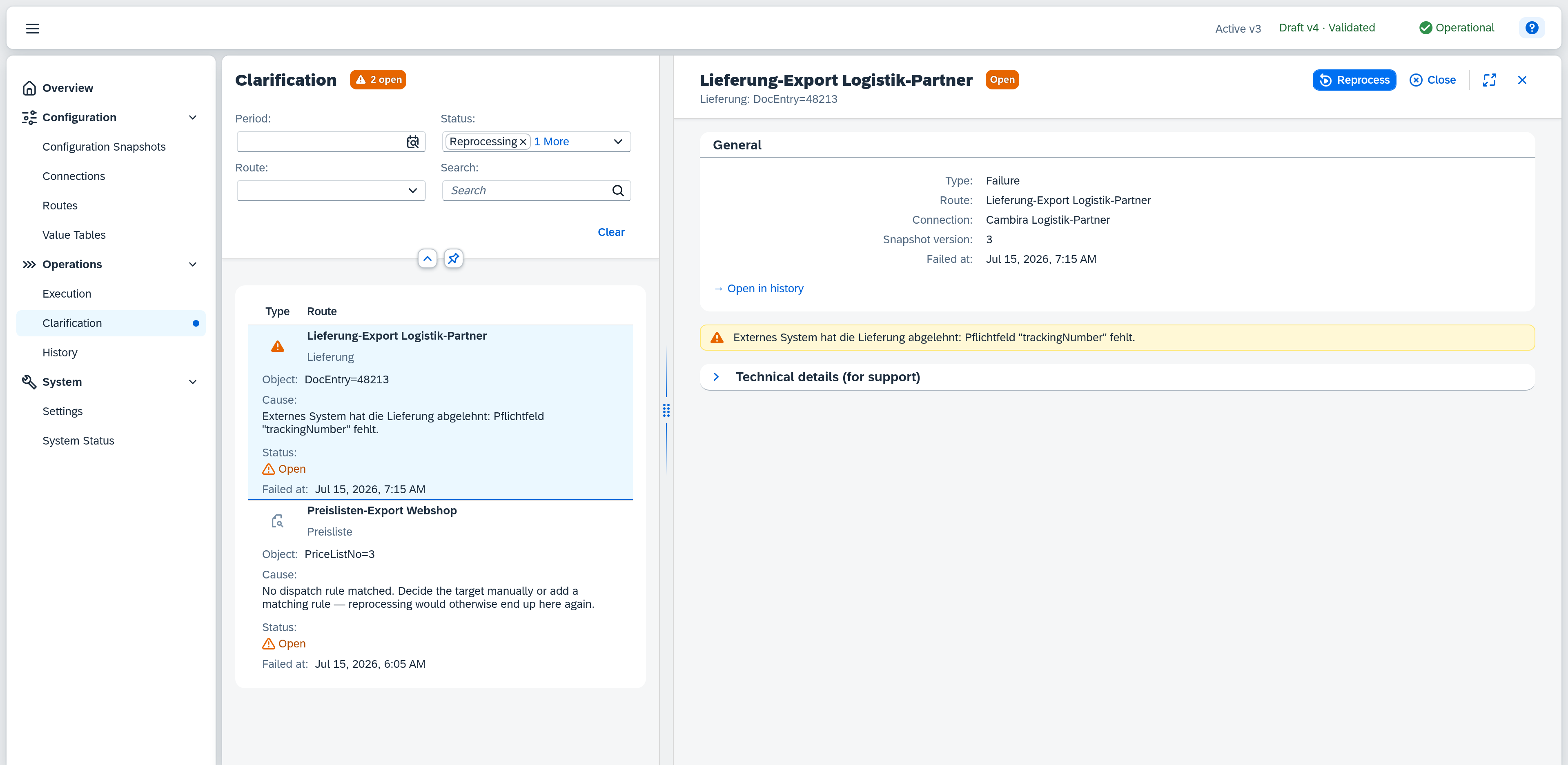
Click a row to open the detail view on the right with the full details of the entry.
Header
| Field | Content |
|---|---|
| Title | Name of the route whose operation triggered the entry, e.g. "Lieferung-Export Logistik-Partner". |
| Status badge | Current status as a coloured badge next to the title — see status values above. |
| Subheading | Object type and object key of the affected record, e.g. "Lieferung: DocEntry=48213". Only shown when at least one of the two fields is set. |
General
| Field | Content |
|---|---|
| Type | Failure or Review — see the "Type" column above. |
| Route | Route name at the time of failure. |
| Connection | The connection the route uses to talk to the external system. |
| Snapshot version | Configuration snapshot the associated operation ran with. |
| Failed at | Time the entry was created. |
| Redeliveries | Number of times the source system redelivered the same event. Only shown if the source redelivered the event at least once. |
| Last redelivered at | Time of the last redelivery. Only shown under the same condition. |
| "→ Open in history" (link) | Opens the associated operation in the History detail view. |
If a redelivery's content differs from the originally recorded operation, an additional warning appears: the source redelivered the same event with different content. The originally recorded operation remains unchanged — the notice only signals the discrepancy.
Below that, a message shows the cause in plain text — informational (blue) for Review, a warning (orange) for Failure.
Technical details (for support)
A collapsible section, collapsed by default, shows technical information for troubleshooting:
| Field | Content |
|---|---|
| Error code | Technical error code. Only for Failure. |
| Error class | Technical value Transient or Permanent, not translated. Only for Failure. |
| Reason | Business reason code; for Review the triggering rule, for Failure usually empty. |
| Retries | Number of automatic retries so far. |
| Operation ID | Internal ID (GUID) of the underlying operation. |
| Correlation ID | Technical identifier for tracing across system boundaries. |
| Details | Full technical error cause without payload data. Only shown if set. |
| Resolved by | User who closed or resolved the entry. Empty while the entry is not yet finished (Open or Reprocessing). |
Actions
While an entry has the status Open, two actions are available in the header:
- Reprocess — starts a new processing attempt for the affected record. The entry switches to Reprocessing immediately and stays on the work list while the new operation runs. If it completes successfully, the entry automatically switches to Resolved; if it fails again, a new open entry is created that supersedes the previous one.
- Close — closes the entry without a further processing attempt, after a confirmation. Suitable when the record should no longer be transferred.
While the status is Reprocessing, both buttons remain visible but trigger no further action — a click simply reports that processing is still running.
Reprocess processes the record against the active configuration snapshot — not the draft. Newly added target routes only take effect after activation (draft → active). Reprocessing before activation lands the record back under Clarification.
While no entry is selected, the detail view shows a placeholder prompting you to select an entry from the list.