Mapping
The Mapping tab of the route editor defines how the fields of the internal message are mapped onto the target structure. A route can consist of several steps, each step producing its own target document with its own mappings. Changes are collected in the draft and take effect when it is activated.
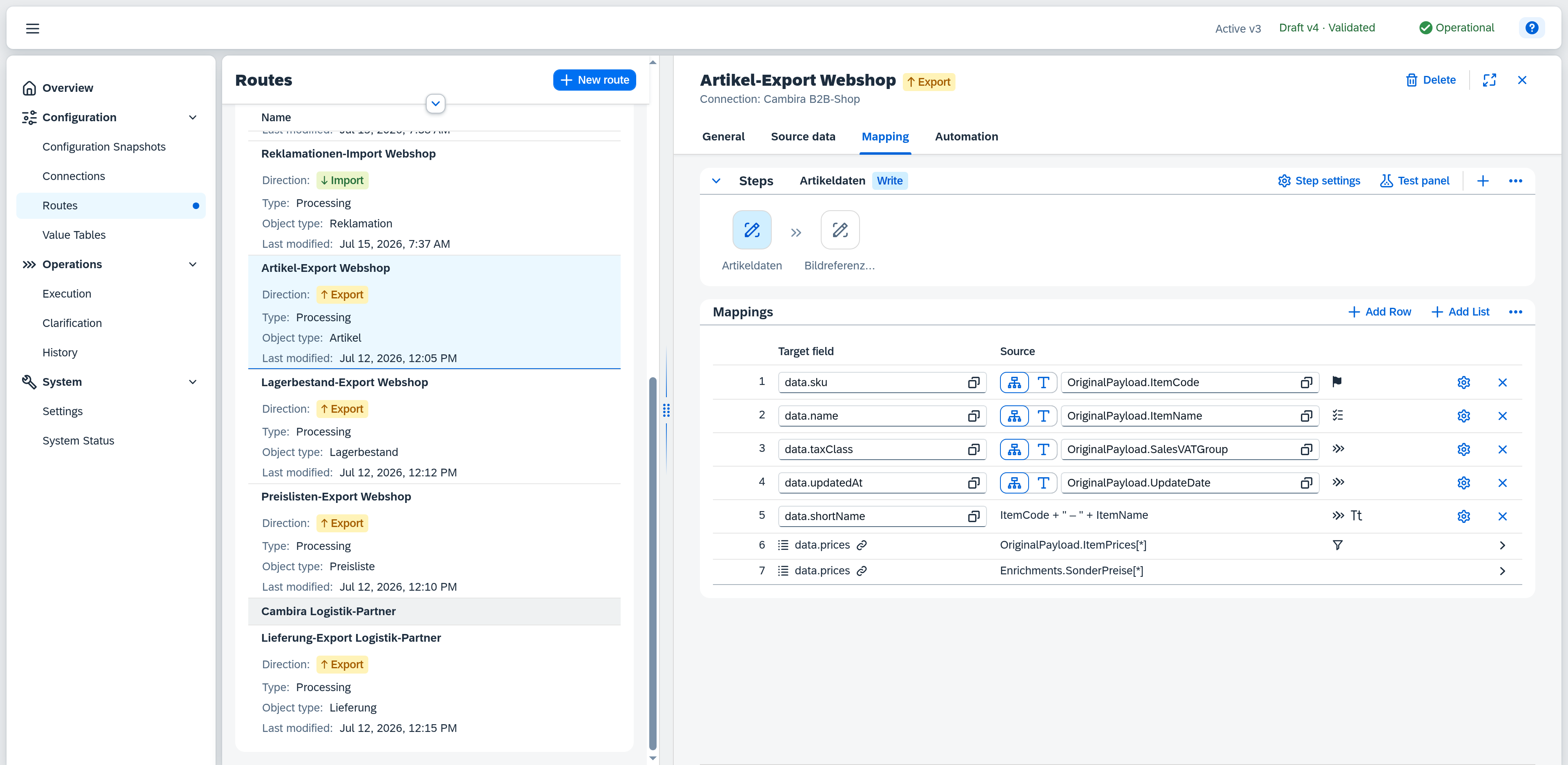
For an export route, mapping maps fields of the internal message onto a target document for the external system; for an import route, onto a SAP Business One object. The editor itself has the same structure in both cases — only the data source feeding the target-field selection (the SAP Business One field structure for import, the reference data for export) and a few labels differ.
Permissions
The page is visible once you have the Configuration — Routes permission (Read or Full). Without the Full level the route editor is read-only: you see the configuration but cannot change it.
Steps
The Steps panel above the workspace shows all steps of the route as tiles, with an arrow icon between consecutive steps. Clicking a tile selects the step and shows its mappings below; drag a tile to change the order. The panel can be collapsed — the space freed up goes to the workspace below. When no steps are configured yet, the panel shows the note "No steps configured".
The panel's header carries the name of the selected step, the Write badge for its mode, and the actions:
| Action | Effect |
|---|---|
| Step settings | Opens the step settings of the selected step. |
| Test panel | Shows or hides the test panel next to the mappings. The button only shows it — the test is started there. |
| Add Step | Creates another step. |
| Delete step | Deletes the selected step after a confirmation that names it. The action sits in the overflow menu (⋯) so it is not hit by accident. A route needs at least one step; on the last one a short message says "The last step can't be deleted". |
Step settings
The Step settings button opens the settings of the selected step — a dialog with the tabs General, Condition, Target structure and Response structure. The Target structure tab is available only for a step in Write mode.
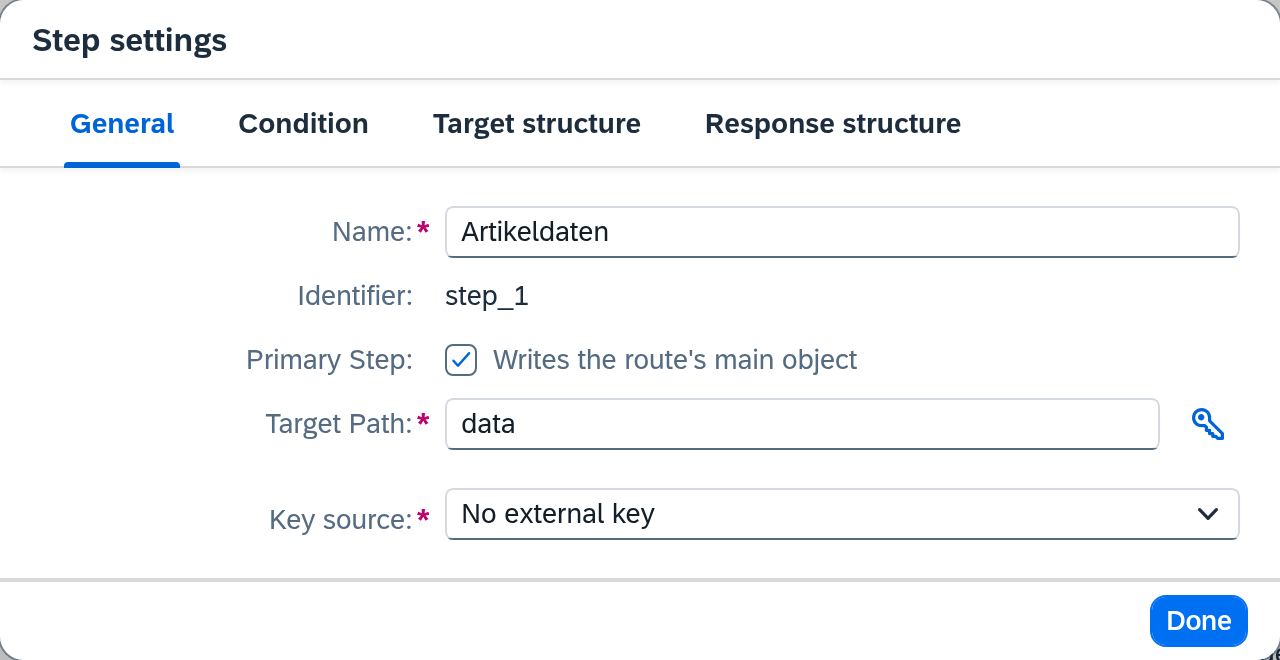
General
| Field | Note |
|---|---|
| Name | Display name of the step. For a route with only one step, this field stays empty and the route itself provides the display name. |
| Identifier | Technical identifier of the step, read-only. |
| Primary Step | Marks the step that writes the route's main object. Visible only for routes with more than one step; with exactly one step there is nothing to choose. |
| Target Path | The target path the step's target document is submitted to — e.g. an API path for export, or a Service Layer path for import. Offers suggestions. If the path contains the {{key}} placeholder — articles/{{key}} — Xchange substitutes the key from the marked mapping row there. This requires the key source Marked mapping row: a key from the target system's response does not exist yet while the request is being assembled. On an export route, the Insert key placeholder button (key icon) sits to the right of the field and inserts {{key}} at the caret. |
| Key | Import routes only, on the writing primary step: the key of the SAP Business One record the step creates. Xchange derives it from the field structure of the entity the target path names, and records the created record under it. A composite key is shown comma-separated in one field. The field is read-only — there is nothing to choose; if it stays empty, no entity could be resolved for the target path yet. |
For an export route, the fields for key determination follow below. They determine where the key of the record the step creates in the target system comes from. Xchange records that key so later runs address the same record. The fields appear only on the primary step, and only when that step writes.
| Field | Note |
|---|---|
| Key source | Marked mapping row — Xchange assigns the key itself; you mark the mapping row that supplies it (see Icons). Target system response — the target system assigns it and reports it back. No external key — the target system keeps no key that Xchange could record. A value is required. |
| Read from | Only for Target system response: whether the key is read from the Response data or from a Header of the response. Header is offered only if the target system's connection returns headers. |
| Path in the response data | Only for Response data: the path to the key field in the response, e.g. $.id. |
| Header name | Only for Header: the name of the header, e.g. Location. A value is required. |
| Use value | Only for Header: Complete takes the header value unchanged, Last path segment only the part after the last slash — from https://shop.example.com/articles/4711, therefore 4711. |
For an import route these fields do not apply — there is nothing to choose there, and the read-only Key field under the target path takes its place.
Condition
Determines whether the step runs. Without a condition, the step always runs. With a condition set, Xchange evaluates it against the internal message before running the step; if it does not match, the step is skipped — no error, processing continues with the next step. Conditions check values of the internal message only; values that must be looked up first are provided via additional data beforehand.
Use Add condition to add a row with Field, Operator and Value. With multiple rows, Combine determines whether all conditions must match (AND) or any one suffices (OR).
Target structure
Only for a step in Write mode. Shows the reference data from which mappings can be derived automatically (see Reference data below) — for import routes a structure skeleton derived from the SAP Business One field structure, for export routes a pasted sample message from the target system. Generate mappings (visible only on this tab) takes the contained fields as new mapping rows.
Response structure
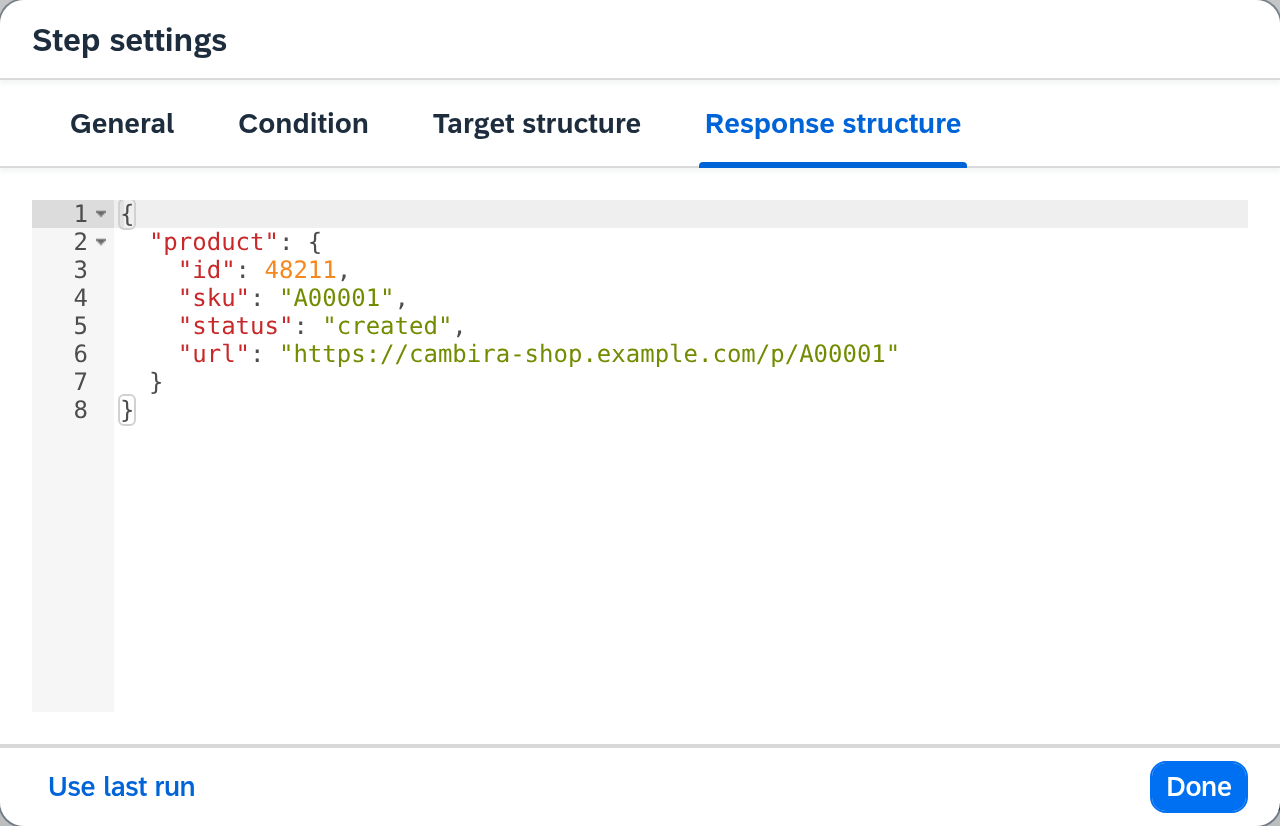
A sample response of this step as JSON. From it, Xchange derives which fields a following step can choose under Results of previous steps — with no response structure maintained, nothing is offered there. Unlike the target structure there is no structure skeleton to pre-fill it: you paste the response, or take it over via Use last run from this step's last successful run. If there is none yet, a short message says so. On the route's last step, a note points out that its response data no longer feeds a following step.
Mappings
The Mappings table shows all mappings of the selected step — simple rows as well as lists — in their processing order. Use Add Row to create a new simple mapping, or Add List for a new list mapping (see Lists below); drag a row to change the order. Delete all mappings in the table's overflow menu (⋯) empties the step completely — including all lists together with their entries, after a confirmation.
When a target field is committed, Xchange places the row itself: mappings sharing a path prefix — e.g. lines.itemCode and lines.quantity — stay together, the groups in the order of their first occurrence. A newly created row therefore moves from the end to its place as soon as its target field is set. If you chose it from the selection list, the focus follows the row to its new position; after a typed entry the focus stays where it is, and the row is merely scrolled into view.
| Column | Note |
|---|---|
| (Number) | The row's sequential number in the processing order. The column carries no header. |
| Target field | The target field path, e.g. data.sku. For a list, its target path; for an additional row, its identifier. |
| Source | The source path or the constant. The button on the left of the field switches between field reference and constant value; its icon shows which one currently applies. For one of the transformations Concatenate, Current UTC timestamp, New GUID, Object type, License environment, or Conditional value mapping, a short summary appears instead — for Concatenate its parts, for Object type the looked-up entity type, for Conditional value mapping the number of cases, otherwise the transformation's name; for a list, its source path. |
The gear icon of a simple mapping opens its field details; the remove icon deletes the row. A list mapping or additional row instead opens its own detail view when the row is clicked.
Besides the fields of the source data, the selection list offers the Event type field on export routes. It names what caused the run — Create, Change, or Delete — and can be mapped like any other source field or checked in a condition. This lets a route report a record that has dropped out even to a target system that has no delete operation: on Delete, the mapping sets a flag instead of removing the record. The field is not available on import routes — there the event type is always Change.
List values
If a source path points at an element of a list — recognizable by the square bracket in the path, e.g. OriginalPayload.DocumentLines[0].LineTotal — a List values selector appears next to the source:
- Single value — the path points at exactly one element, and its value is taken.
- Sum — all matching elements are added up. Xchange rewrites the path itself:
[0]becomes[*]. - Count — the matching elements are counted. The result is a whole number; the path is rewritten to all elements in the same way.
The sum suits amounts that SAP Business One keeps across several document lines — the total of all line amounts of a document, for example. If the path matches no element, the result is 0; a non-numeric element aborts the operation with an error.
The count counts elements, not values: an empty element counts, a non-numeric one counts too. If the path matches no element, the count is 0. To count only some of the elements, narrow the path itself — e.g. OriginalPayload.DocumentLines[?@.ItemCode!=''] for all lines with an item number. Together with the Add transformation, the count yields the number of a line that Xchange inserts itself.
The selector is available wherever you choose a source field: on the mapping itself, on the fallback value of the empty behavior, on the parts of Concatenate, on the values of Conditional value mapping, and on the argument of an arithmetic transformation. It is not offered in a condition or a filter.
Icons
Icons on the right of a row indicate active properties of the mapping; the key icon is also a button:
| Icon | Meaning |
|---|---|
| Step (gear-like) | A transformation is active — the tooltip names it. |
| "Tt" (text formatting) | Use fallback value or Write null is configured for an empty source value. |
| Flag | Technical required field. |
| Multiselect | Business required field. |
| Funnel | On a list: a filter is active. On a simple mapping: a condition is active. The tooltip names both. |
| Chain link (lists only) | This list is merged into a shared target list together with at least one other list (see Merging multiple lists). |
| Key | This row supplies the key of the record in the target system. One click sets the mark, another removes it; at most one row per step carries the mark. The icon appears only once the key source Marked mapping row is already selected in the step settings — the source is therefore chosen there, not here, and marking a row does not change it. A further prerequisite: the primary step of an export route, and that step writes. Without edit permissions, only the marked row is recognizable by the icon. |
Field details
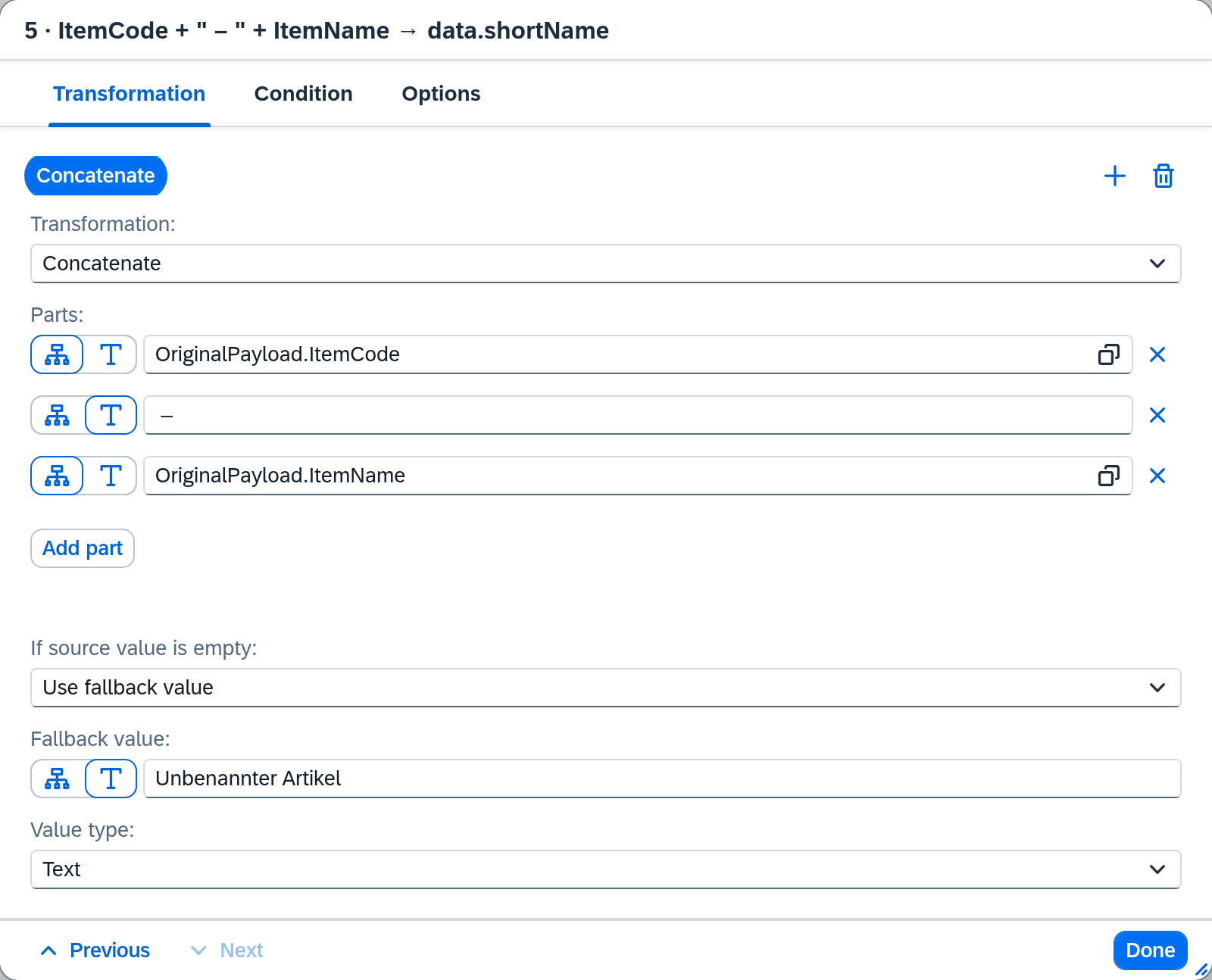
The gear icon of a simple mapping opens its details in a dialog with three tabs:
- Transformation — the transformation itself and the empty behavior.
- Condition — if it does not hold, the entire mapping is skipped (see below).
- Options — required and change detection.
A colored dot on a tab marks which tab contains an error. Use Previous / Next in the dialog footer to move to the previous or next row without closing it.
Transformation
Converts the source value before it is applied. A mapping can apply several transformations in sequence: the chain sits as a band above the form, and the result of one transformation is the input of the next.
- Add — the plus icon at the end of the band appends a transformation and opens the function list right away.
- Edit — clicking a transformation in the band shows its settings in the form below.
- Reorder — drag a transformation to another position in the band.
- Remove — the remove icon deletes the selected transformation after a confirmation.
A colored dot on a transformation marks an error in its settings. When the chain is empty, the band says "No transformation — the source value is passed through unchanged".
| Transformation | Category | Additional fields |
|---|---|---|
| Current UTC timestamp | Value generation | — |
| New GUID | Value generation | — |
| Convert to boolean | Type conversion | — |
| Convert to integer | Type conversion | — |
| Convert to decimal | Type conversion | Decimal separator |
| Substring | String | Start character (incl.), Number of characters |
| Split | String | Separator, Part |
| Concatenate | String | Parts — see below |
| Replace | String | Search text, Replacement text — see below |
| Trim whitespace | String | — |
| Convert to uppercase | String | — |
| Convert to lowercase | String | — |
| Value table | Lookup | Value table |
| Conditional value mapping | Lookup | Cases — see below |
| Object type | Value generation | Object |
| License environment | Value generation | — |
| Add | Arithmetic | Addend — see below |
| Divide | Arithmetic | Divisor — see below |
| Multiply | Arithmetic | Factor — see below |
| Subtract | Arithmetic | Subtrahend — see below |
| Format date | Date | Format — see below |
| Convert to date | Date | Source format |
| Convert to date/time | Date | Source format |
Six transformations produce their value themselves instead of converting a source value — Current UTC timestamp, New GUID, Concatenate, Object type, License environment and Conditional value mapping. They are therefore allowed only at the first position of the chain and are not offered at the later ones.
Concatenate joins any number of parts into a string; each part is either a field (source-field selection) or fixed text. Use Add part to append further parts; whether a part is a field or fixed text is switched on the part itself. The remove icon of a part deletes it.
Replace swaps every occurrence of the search text for the replacement text. The search is literal and case-sensitive; the search text is not a pattern, so a dot stays a dot. Leaving the replacement text empty removes the search text altogether — which is how separators are washed out of a number, e.g. turning 12-345/678 into 12345678 with two consecutive Replace steps.
Add adds an addend to the source value — either a fixed constant or the value of another field, optionally looked up via a value table. Together with the Count list-value selection (see List values) this yields the number of a line that Xchange inserts itself: the count of existing lines plus 1.
Divide divides the source value by a divisor that is either a fixed constant or the value of another field — in the latter case, optionally looked up via a value table.
Multiply multiplies the source value by a factor — as with the divisor, either a fixed constant or the value of another field, optionally looked up via a value table. A factor of -1 inverts the sign, e.g. for a discount line whose price has to be transferred as a negative amount.
Subtract subtracts a subtrahend from the source value — as with the factor, either a fixed constant or the value of another field, optionally looked up via a value table. The order is fixed: the calculation is source value − subtrahend.
Enter a fixed constant in your company's separators — Xchange takes the decimal and thousands separators from SAP Business One's general settings. The value is put into that form when you leave the field; a thousands separator you type is dropped from the display. With a comma as the decimal separator, 0.32 therefore becomes 0,32 and 1.500,3 becomes 1500,3. This is not the decimal separator of Convert to decimal: that one describes the source data of the connected system, not your input.
Format date offers a choice of common formats (ISO date, German date, year, month, day, calendar week, year + calendar week) as well as Custom… with a free pattern (e.g. dd.MM.yyyy).
Conditional value mapping derives the target value from a list of cases: each case consists of a condition (If) and a value (Then use); the first matching case supplies the value. If no case matches, Otherwise applies.
Value table and Object type look the source value up in a separate table — see Value Tables (reference) for maintaining the entries.
License environment yields the environment of your license as a value — Test, Live or, in developer mode, Development. It needs no source field and no further settings. This keeps you from maintaining the identifier as a constant in several routes: after a license switch from test to productive, the value changes on its own. If the license state cannot be determined reliably, the mapping fails — the environment is never guessed.
Empty behavior
Defines what happens when the source value is empty:
| Option | Effect |
|---|---|
| Do not transfer | The target field is omitted when the source value is empty. |
| Use fallback value | A fixed fallback value is applied instead; its value type (text, number, boolean) is also selectable. |
| Write null | The target field is explicitly set to null. |
Condition
An optional condition acts as a switch for the entire row: if it does not hold, the mapping is skipped and the target field does not appear in the target message at all — neither a value nor null is written. Use Add condition to add a row with Field, Operator, and Value; with several rows, Combine (AND / OR) determines whether all must hold or one suffices. Without a condition, the mapping is always applied. Evaluation is against the internal message only.
Which operators are offered depends on the type of the selected field:
| Field type | Operators |
|---|---|
| Text | equals, does not equal, contains, does not contain, starts with, does not start with, is empty, is not empty |
| Number, date | equals, does not equal, is greater than, is greater than or equal to, is less than, is less than or equal to, is empty, is not empty |
| Boolean, selection value | equals, does not equal, is empty, is not empty |
| Path selecting a list | contains value, is empty, is not empty |
does not contain and does not start with include empty values: if the source field has no value, the condition is satisfied — a missing value does not start with the text you are looking for. The mapping is then applied.
Fields with no declared type — enrichments, results of previous steps, and a pasted test message — keep the full choice. If you switch the field and the previous operator is no longer among those offered, Xchange falls back to the first one offered.
The value is either a fixed value or a reference to another field: the button on the left of the value field switches between the two, as in the Source column of the mappings. This is how you compare two fields with each other instead of checking against a constant. For is empty and is not empty the value field is dropped entirely.
On a date field, the comparison value can be the current day instead of a fixed date: the calendar icon in the value field sets "Today", and clicking it again clears it. The comparison is day-granular; the time of day is disregarded. "Today" is offered for the comparison operators, not for contains, does not contain, starts with, does not start with, contains value, is empty, and is not empty.
Both rules apply to every condition on the Mapping tab — row condition, step condition, additional-row condition, and the If of a Conditional value mapping case; the list filter follows the same type rule but offers no contains value. "Today" is available in the source data filters and in the event trigger as well; there the day is determined anew for each run, or for each event.
Required
Two independent flags that mark a mapping as a required field: Technical and Business. For import routes, Technical is derived from the SAP Business One field structure and cannot be changed there.
Change detection
The Exclude from change detection checkbox removes the mapping from the change-detection computation — a change to this field alone then does not trigger a re-transfer.
If all of a step's mappings are excluded, a warning above the mapping list points out that changes will then never be detected.
Lists
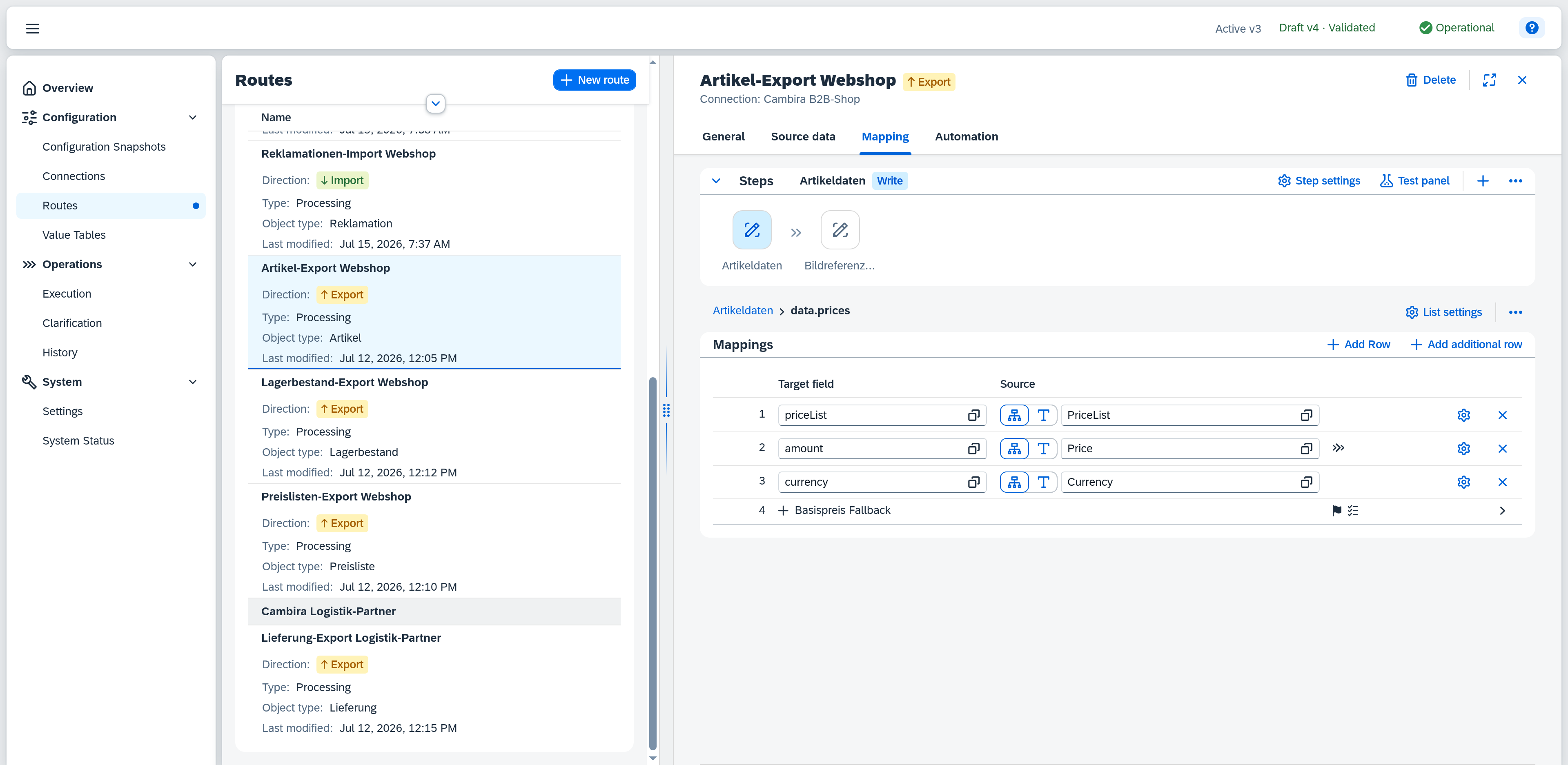
A list mapping fills a target list — usually from a source list, that is an array in the internal message (for the other options see Fill mode). Clicking the row opens its detail: the Mappings table of the list elements — technically the same row template as the step's Mappings table, likewise reorderable by drag and with the same placement when a target field is committed. An element field is chosen from the element fields of the source list, from the parent row or from the main record — see Source fields of an element.
Above the table sits a path made up of the step's name and the list's target path. The preceding segments are clickable and lead back there — from the list detail, therefore, back to the step's mappings. The list's actions sit to the right of it:
| Action | Effect |
|---|---|
| List settings | Opens the dialog with the tabs General and Filter — the one-time list setup and the element filter are not in the table. The dialog can be opened and read without edit permissions as well. |
| Delete list | Deletes the list with all its mappings, after a confirmation that names the target path. The action sits in the overflow menu (⋯). |
List settings
In the List settings dialog, the General tab holds the list's basic settings:
| Field | Note |
|---|---|
| Target List | The target path of the list, e.g. data.item.salesPrices. |
| Fill Mode | Where the elements come from — From Source List, Fixed Rows, or From Text Value, see below. |
| Source List | For From Source List: the array path in the internal message, e.g. Enrichments.PriceList[*]. The path may lead into a list within a list, e.g. OriginalPayload.DocumentLines[*].BatchNumbers[*]. |
| Source Field | For From Text Value: the text field whose content is split, e.g. OriginalPayload.packageIdentifier. |
| Separator | For From Text Value: the character the text is split at, e.g. |. |
| Required | Technical / Business — same as for simple mappings. |
| Empty Behavior | Do not transfer, Write null, or Write empty list. |
Fill mode
The Fill Mode decides what the elements of the target list are built from — and thereby which of the fields above are visible at all:
- From Source List — the elements come from an array in the internal message, selected in Source List. What an element field is mapped from is described under Source fields of an element.
- Fixed Rows — the list has no source; it holds fixed rows only. The Filter tab is not offered. Since there are no element fields without a source list, the list detail offers a single Add row button, and it creates a fixed row — not the mapping of an element field.
- From Text Value — a single text field (Source Field) is split at the Separator, and each part becomes an element:
4711|4712|4713yields three elements. The separator is matched literally, nothing needs escaping. Blank parts are skipped and surrounding spaces are removed. A part has no element fields — in the mapping of an element field it is available as Element value, and the element filter likewise evaluates against that value.
Switching the fill mode asks first and names what will be removed: settings the new fill mode does not know — the source list when switching to From Text Value, for example — are cleared. The mappings themselves are kept. A source the new fill mode cannot express is cleared as well and then reported as a missing source by the validation.
Source fields of an element
The field picker in the list detail groups the source fields of an element — from the inside out, in the order they nest:
| Group | Content |
|---|---|
| Element fields | The fields of the element itself. With fill mode From Text Value, the Element value stands here instead. |
| Parent row | The fields of the row the source list sits in. Shown only with fill mode From Source List, and only when that list sits inside another list. |
| Main record | The fields of the incoming record. |
The Parent row group shows the row immediately above, not the whole chain. In a list within a list, an element therefore reaches three levels: itself, the row above it and the main record.
A field loaded by a row-level additional-data query appears in the group of the row it hangs off — for a query on the source list, that is Element fields; for a query on the list above it, Parent row.
Filter
The Filter tab of the same dialog filters the elements of the source list before they are mapped — only elements the filter matches appear in the target list. Use the AND / OR button to set how the filter conditions are combined, and Add condition to add another (up to 10). With no condition at all, the table shows "No condition — all entries are included".
| Field | Note |
|---|---|
| Field | The element field the condition is evaluated against. |
| Operator | Depends on the type of the element field — see Condition. contains value is not available here. |
| Value | The comparison value. Hidden for the is empty / is not empty operators. |
Merging multiple lists
When two or more list mappings target the same target list, Xchange automatically merges their elements into that shared target list — with no further configuration. The chain-link icon in the Mappings table marks every list involved.
Additional rows
Inside a list, Add additional row inserts a fixed entry that appears in the target list alongside the elements derived from the source list — e.g. a base-price fallback next to the regular price tiers. Clicking the additional row opens its own mappings table (rows likewise reorderable by drag and placed themselves when a target field is committed, extendable via Add Row).
With the fill mode Fixed Rows, the same entries are simply called rows: the buttons there read Add row and Delete row, and a new row is called "New row". It is the same entry type — only without the source elements it would otherwise sit beside.
As with a list, a path sits above the table here too, leading back to the list and to the step. The additional row's settings sit behind the Additional row settings button — a dialog with the tabs General (the additional row's Identifier) and Condition; Delete additional row, or Delete row respectively, sits in the overflow menu (⋯) next to it. The Condition tab (a table very similar to the list-filter condition table, with Add condition) lets you restrict the additional row to a specific condition — without a condition, it is always inserted. Unlike the list filter, contains value is additionally available here — offered as soon as the selected path selects a list, and then in place of the comparison operators (see Condition).
Reference data
Instead of creating every mapping individually, reference data can be pasted, from which Xchange derives the contained fields as mapping suggestions (Target structure tab of the step settings, see above). Generate mappings takes new fields, lists, and list fields as mapping rows; existing mappings are left unchanged. A confirmation states how many fields, lists, and list fields were newly created or already existed. If that creates a large number of rows at once, Xchange asks before creating them and states the number — a document from SAP Business One carries several hundred fields.
Test panel
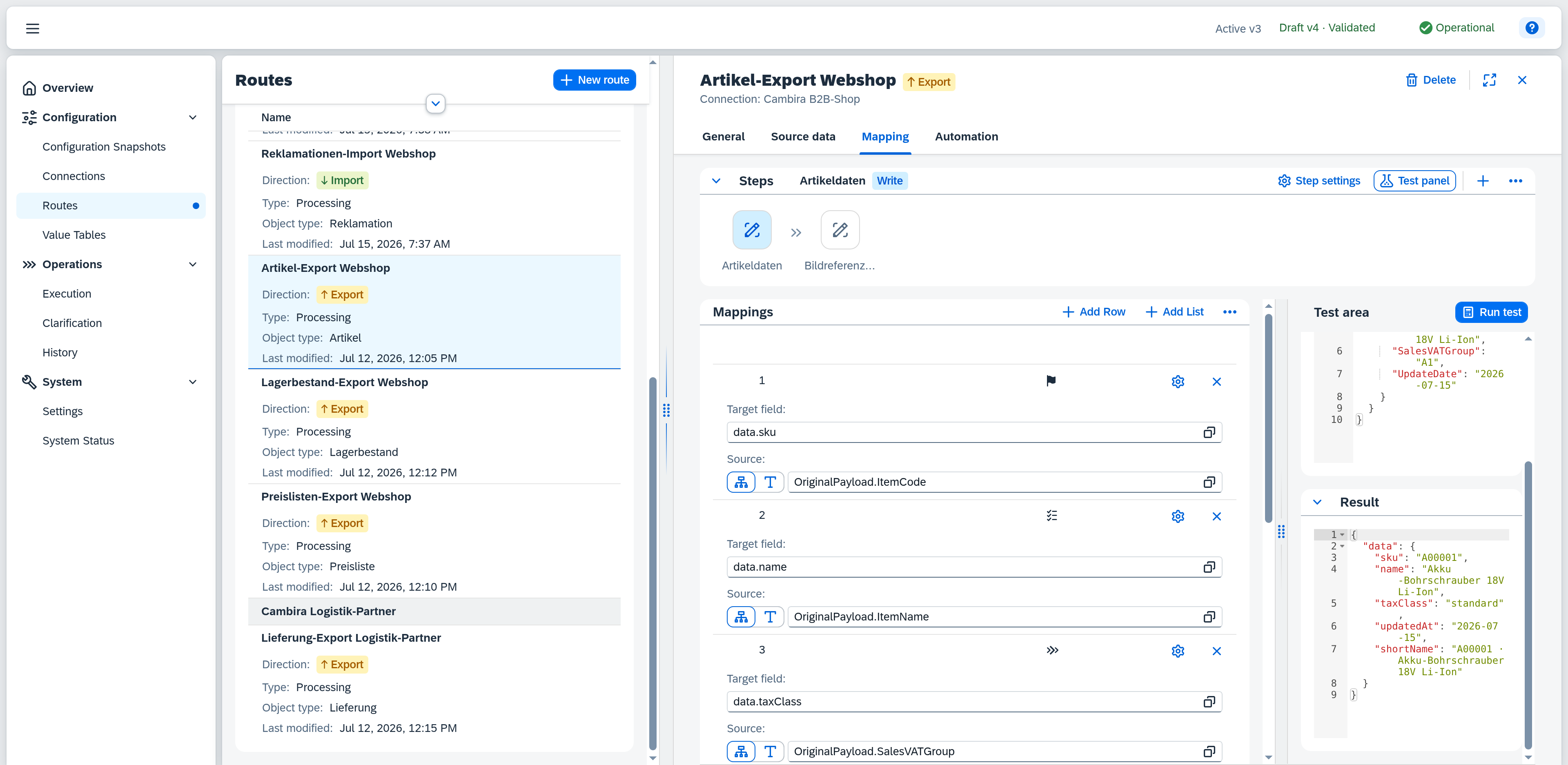
The Test panel button in the header of the Steps panel shows an area for testing the mappings. Run test evaluates the currently configured mappings without processing a real message and without writing anything to the target system.
Test message — the JSON that is tested against. You paste it or load it from the source data; as long as nothing is stored, the note "No test message — paste here or load via Source data" appears there, whose link leads straight to the source data. Reset to reference restores the sample message of the source data — the button appears only if one is stored there; Clear test message discards the content.
Use Event type to set what the test run should count as; the selection fills the source field of the same name in the test message. Without a selection the field stays empty, so a mapping reading it yields nothing.
Response from "…" — for every preceding step whose result this step can use, a card of its own appears below. What you enter there takes the place of that preceding step's real response during the test — otherwise mappings onto Results of previous steps would find nothing. Reset to response structure takes over the response structure stored in the preceding step; if none is maintained there yet, the card points that out, and you enter the response directly here for the test.
The result appears as JSON. Two badges in its header classify it:
- Partial result — see field errors — at least one mapping failed. The result contains only the remaining fields; on the affected rows it is marked which mappings it hit.
- Outdated — run test again — the mappings were changed after the test, and the displayed result no longer matches the current configuration. This badge supersedes Partial result.