Dispatch
The Dispatch tab of the route editor only exists for routes of type dispatch route. It defines the rules an incoming message is split across target routes by — and what happens to a message no rule matches. Xchange evaluates the rules in order and forwards the message to the first rule whose condition matches. Changes are collected in the draft and take effect when the draft is activated.
Permissions
The page is visible once you have the Configuration — Routes permission (Read or Full). Without the Full level the route editor is read-only: you see the configuration but cannot change it.
Rules
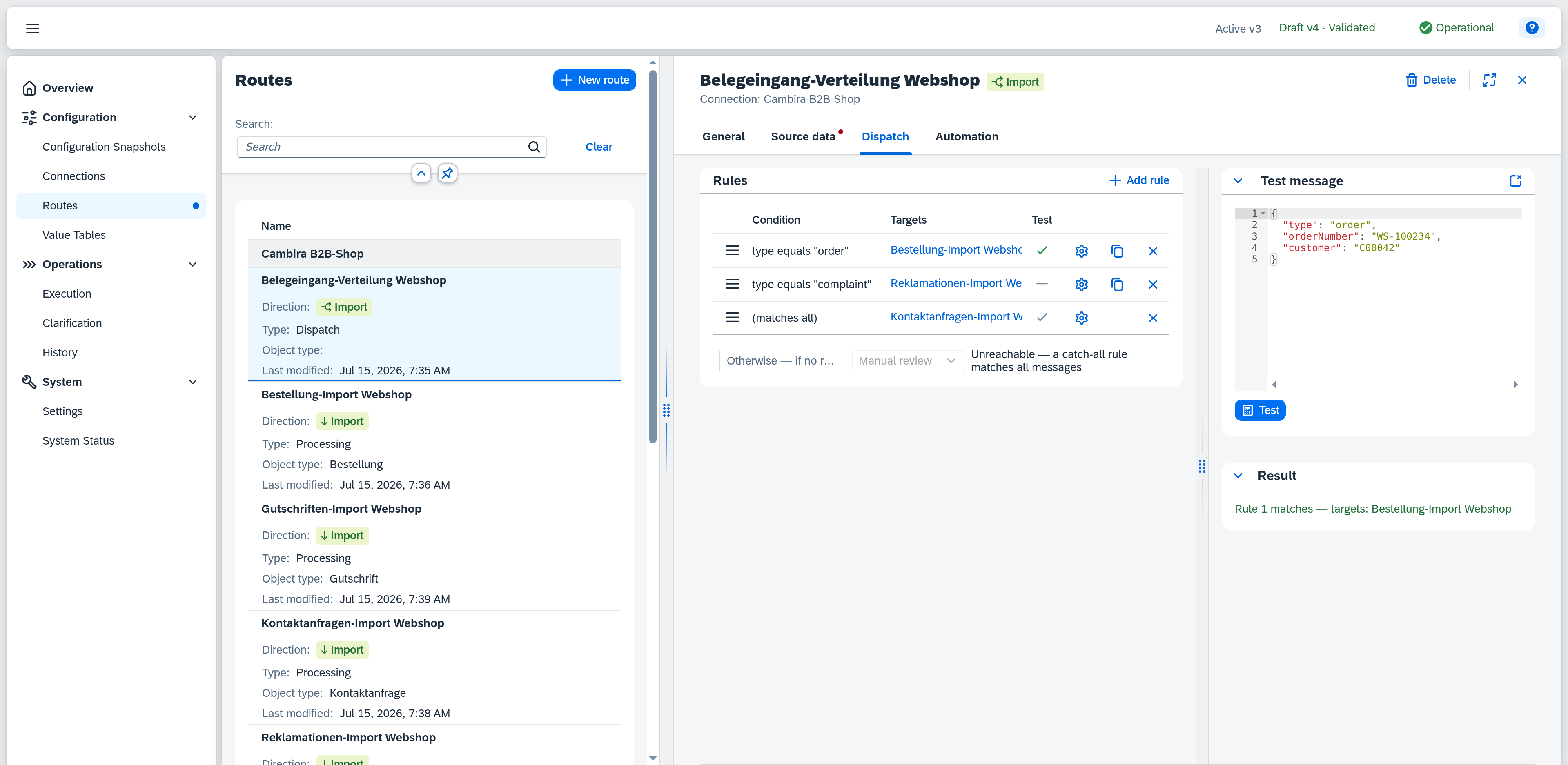
The rule list shows all configured dispatch rules in evaluation order. Add rule creates a new rule: it is appended to the end of the list and starts without a condition — until you give it one, it is therefore a catch-all rule (see No-match behavior). Dragging the handle icon changes the evaluation order.
| Field | Note |
|---|---|
| Condition | A short summary of the rule's condition, e.g. type equals "order". A rule without a condition shows (matches all) — a catch-all rule. |
| Targets | One link per target route of the rule, labelled with the route's name — selecting it opens that route on the General tab. A target route that no longer exists appears as plain text with its identifier instead of a link; with no targets the cell shows "–". |
| Test | Icon of the most recent test run for this rule: green checkmark = the rule that won, grey checkmark = also matched but not the winner, grey minus = did not match. Empty until a test has been run. |
The gear icon opens the rule details, the duplicate icon creates a copy of the rule directly below it (hidden on the catch-all rule), the remove icon deletes the rule — a confirmation dialog appears first for a non-empty rule.
Validating the draft reports the dispatch rules' errors: a rule without a target route, a target route that does not exist in the configuration snapshot or does not meet the connection or data origin, more than one catch-all rule in the same route, and a circular dispatch dependency — a target route that points back at this route, directly or via further dispatch routes. Each finding names the rule concerned as Rule 1, Rule 2, … and opens it when selected.
No-match behavior
At the bottom of the rule list, the select field Otherwise — if no rule matches defines what happens to a message no rule matches:
- Skip — the message is not forwarded; the operation ends in the History with the status Skipped (condition).
- Manual review — the message is submitted for a business decision and appears as an open entry under Clarification.
If the rule list already contains a catch-all rule (a rule without a condition), some rule matches by definition — the select field is then disabled, and the note "Unreachable — a catch-all rule matches all messages" points this out.
Edit rule
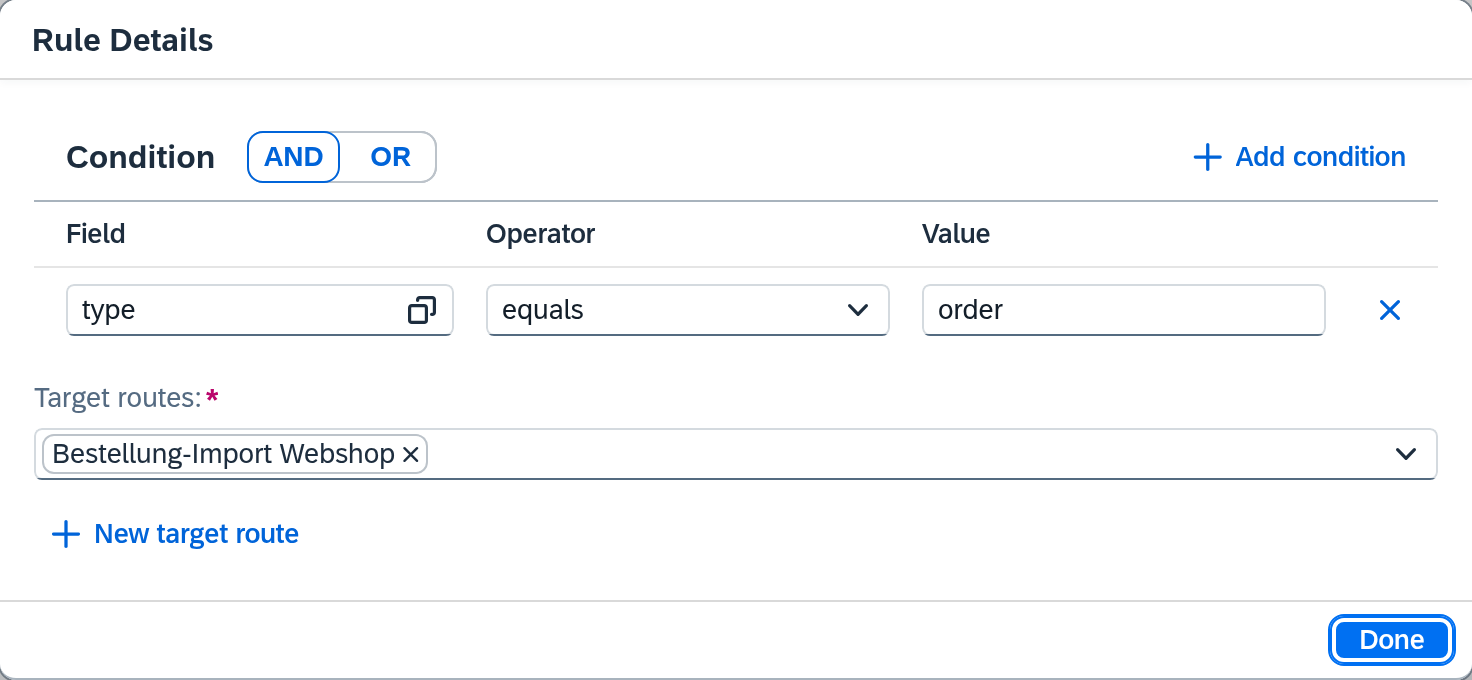
The gear icon on a rule row opens its details in a popover.
Condition
The AND / OR button decides whether the rule's conditions are combined with AND or OR. Add condition adds another condition row (up to 5 per rule); the remove icon on a row deletes it again. With no condition at all, the table shows the note "No conditions — rule matches all messages" — the rule becomes a catch-all rule.
| Field | Note |
|---|---|
| Field | The field path in the incoming payload, e.g. type. The field picker offers the structure of the test message to pick from; required. While no test message exists, the picker stays empty and shows "Enter a test message." — so fill in the test message first. |
| Operator | Equals, not equals, is empty, or is not empty. |
| Value | The comparison value. Hidden for the is empty / is not empty operators, which need no value. |
Target routes
One or more processing routes a matching message is forwarded to — required. The routes offered are inbound processing routes that meet two conditions: they sit on the same connection as the dispatch route and have the data origin Dispatch input. A route on a different connection or with a different data origin is not allowed; validating the draft reports it as an error.
If no suitable target route exists yet, create it right here via New target route. The create dialog opens pre-filled: route type processing route, plus the connection, direction, object type and data origin matching the dispatch route. None of those fields is locked; the new route is then selected as the target of the rule. If you change one of those fields in the dialog so that the route no longer qualifies as a target, it is still created but not selected — a note says so.
Done applies the changes and closes the popover.
Test message
The right-hand pane lets you evaluate a test message against the configured rules without processing a real message. Drag the splitter between the rule list and the test pane to change its width.
| Field | Note |
|---|---|
| Test message | JSON editor for the test message. If reference data from the source data already exists, it pre-fills this field the first time it is opened. If the content is not valid JSON, testing shows the message "Test message is not valid JSON". |
| Test | Evaluates the test message against the rules. Pending changes are saved beforehand — what is tested is always the saved state. The result shows as an icon in each rule's Test column (see above) and as text in the Result panel. |
| Result | A panel of its own that appears only after the first test run: Rule 2 matches — targets: … names the matching rule and its target routes, No match — behavior: … additionally names the configured no-match behavior. |
The header of the Test message panel carries two icon buttons: Reset to reference resets the test message to the reference data (present only when it exists), Clear test message empties it entirely. Both panels can be collapsed via their header.