Value Tables
A value table translates source values into target values. It is applied when mapping a route: when a field hits a value from the source system, Xchange replaces it with the matching target value — e.g. a SAP unit-of-measure code (ST) with the spelling the webshop expects (Stk.). This keeps business translations maintainable in one central place instead of scattered across individual routes. Changes to value tables are collected in the draft and take effect when the draft is activated.
Permissions
The page is visible once you have the Configuration — Mapping permission (Read or Full). New Value Table, editing the fields, Import values, and Delete are only available with the same permission at the Full level — without it, the detail view is read-only.
List view
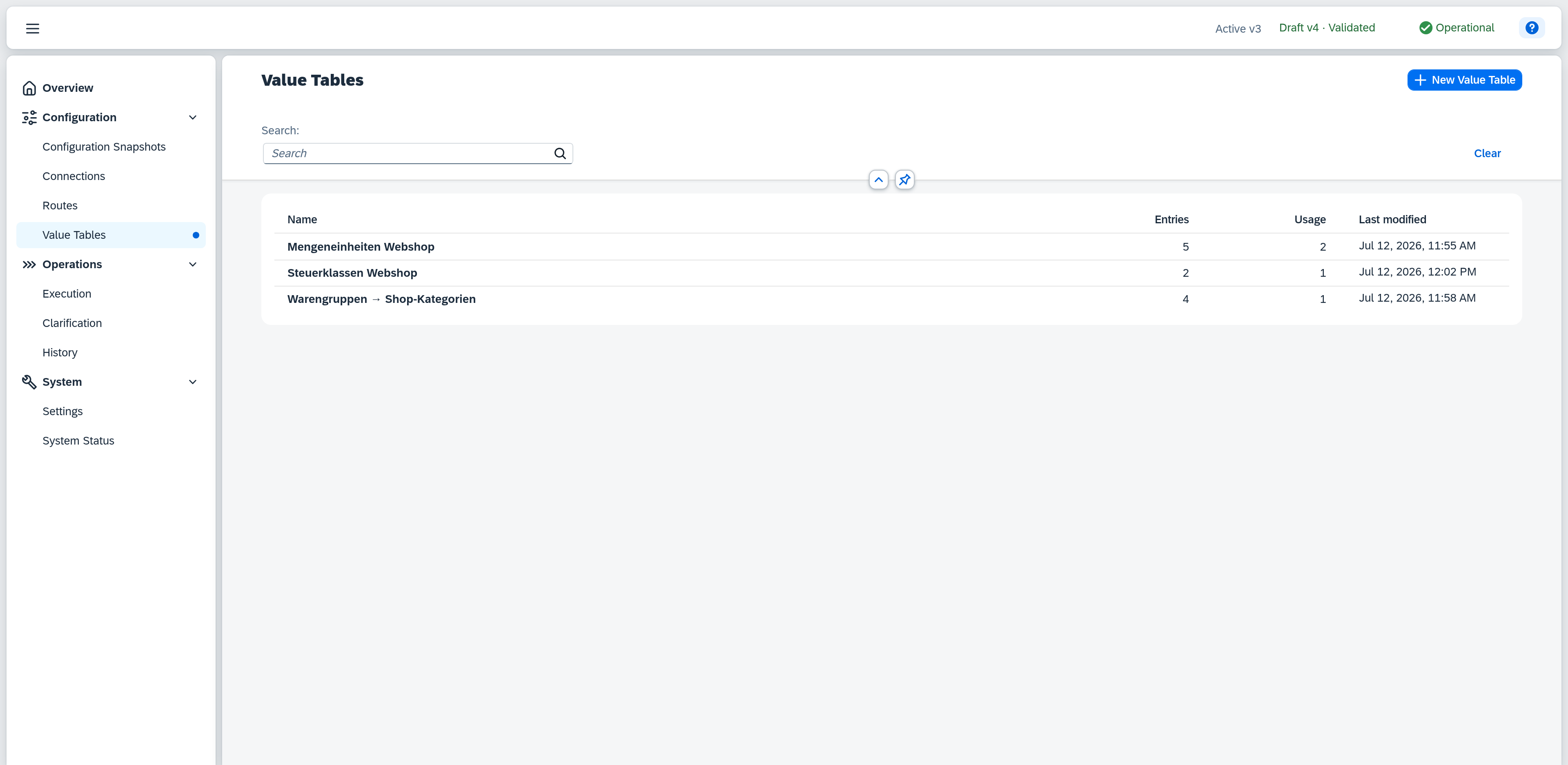
The list view shows every configured value table. Value tables are sorted alphabetically by name.
The Search field narrows the list by name and description. If a row matches only because of its description, that description is shown as a second line below the name — so you can see why the row is in the result. The search term lives in the page's address: you can bookmark the link or pass it on, reloading restores the filtered list, and closing the detail view returns to it.
Columns
| Column | Content |
|---|---|
| Name | Display name of the value table. Click a row to open the detail view on the right. |
| Entries | Number of source-to-target value pairs in the table. |
| Usage | Number of routes that use this value table in their mapping. |
| Last modified | When the value table was last changed. |
Actions
New Value Table (top right) creates a new table: only a name is requested — if you enter a name already in use, a warning appears, but you can still confirm the creation —, then the detail view opens to fill in the entries.
If another user is currently editing a value table, an edit pencil appears in the Name column; a tooltip shows who is working on it.
Detail view
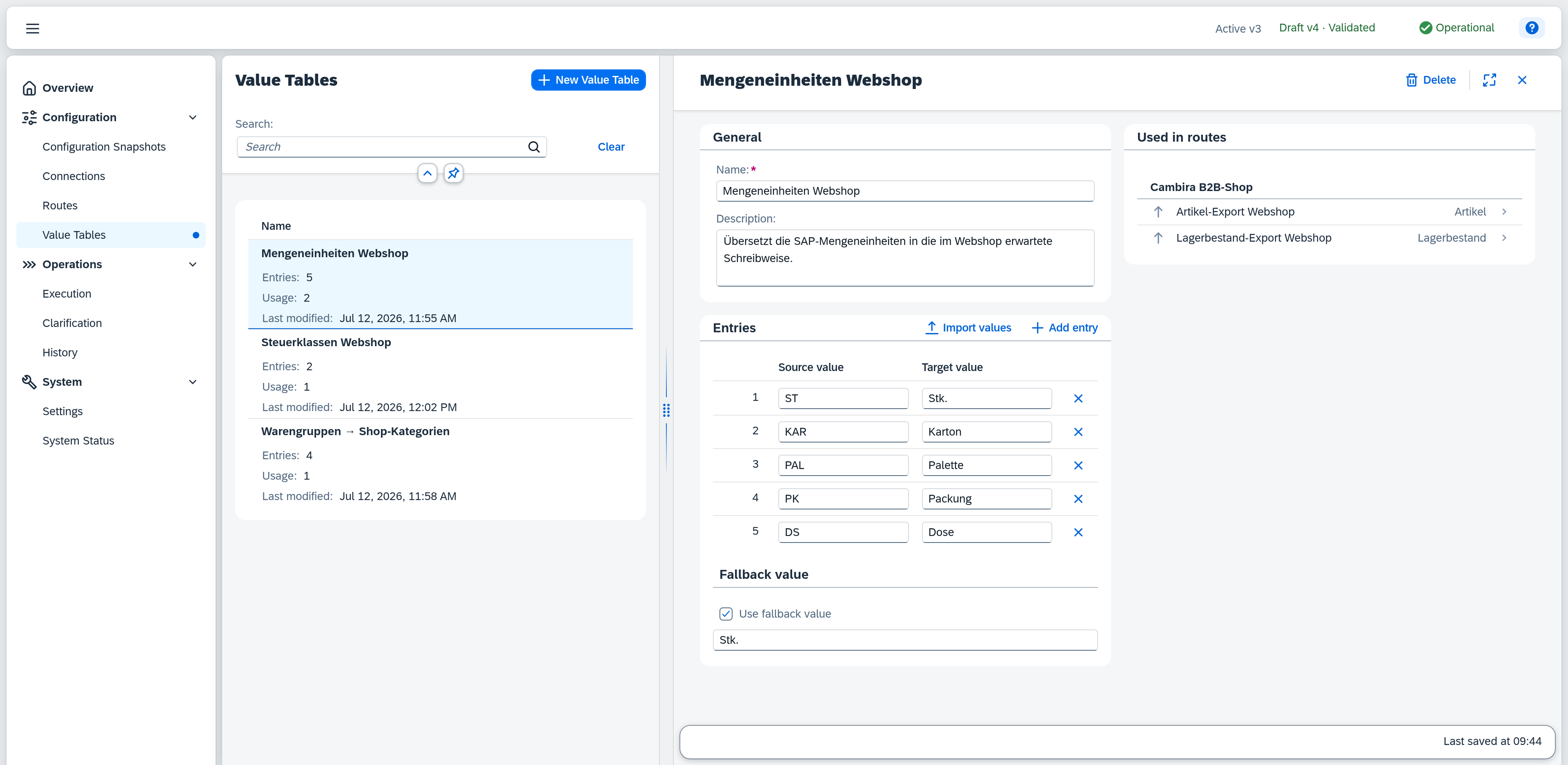
The detail view shows the general fields, the entries, and the fallback value; next to them — below them on narrow screens — sits Used in routes. Changes are automatically captured in the current draft — the timestamp of the last auto-save is shown at the bottom (footer). If this value table has open items, the issue list appears there as well: the button states their count, clicking it opens the list of messages, and clicking a message jumps to the affected spot.
If the value table is currently being edited by another user, a warning appears at the top of the detail view: "Currently being edited by … — your changes may conflict", with that person's name in place of the ellipsis. If the value table has in fact been changed elsewhere in the meantime, Xchange reports this when saving and offers you Reload and Save anyway.
If the value table has since been deleted, or the link you followed is stale, the detail view shows Value table not found with a Back to list button.
General
| Field | Note |
|---|---|
| Name | Display name of the value table. Required, can be changed at any time. If another value table already has this name, a warning appears — the value table can still be saved. |
| Description | Optional free text, multi-line, at most 254 characters. Records what the table is for; the search in the list also covers this field. |
Entries
Each entry consists of a source value and a target value. When mapping, Xchange looks up the source value and returns the matching target value. The comparison is exact — case and whitespace must match.
| Element | Note |
|---|---|
| Row number | Consecutive number at the start of the row. The issue list refers to an entry by it: Entry 3 means the third row. |
| Source value | The value as it arrives from the source system. Must be unique within the table and must not be empty. |
| Target value | The value to translate into. Must not be empty. |
| Add entry | Adds a new, empty row at the end of the table. A value table without entries opens with one such row already in place, so you can start typing right away. |
| Remove entry | Removes the row via the ✕ at the end of the row (tooltip Remove entry). If the row is still empty (neither source nor target value entered), it disappears immediately; if it already holds a value, Xchange asks for confirmation in a dialog first, since removing it cannot be undone. |
Invalid input is marked in red directly at the affected cell — but only after you have edited that cell, or after an attempt to activate the draft. Until then an untouched row stays quiet; the issue list in the footer lists it regardless. With many entries, the table loads further rows as you scroll.
Import values
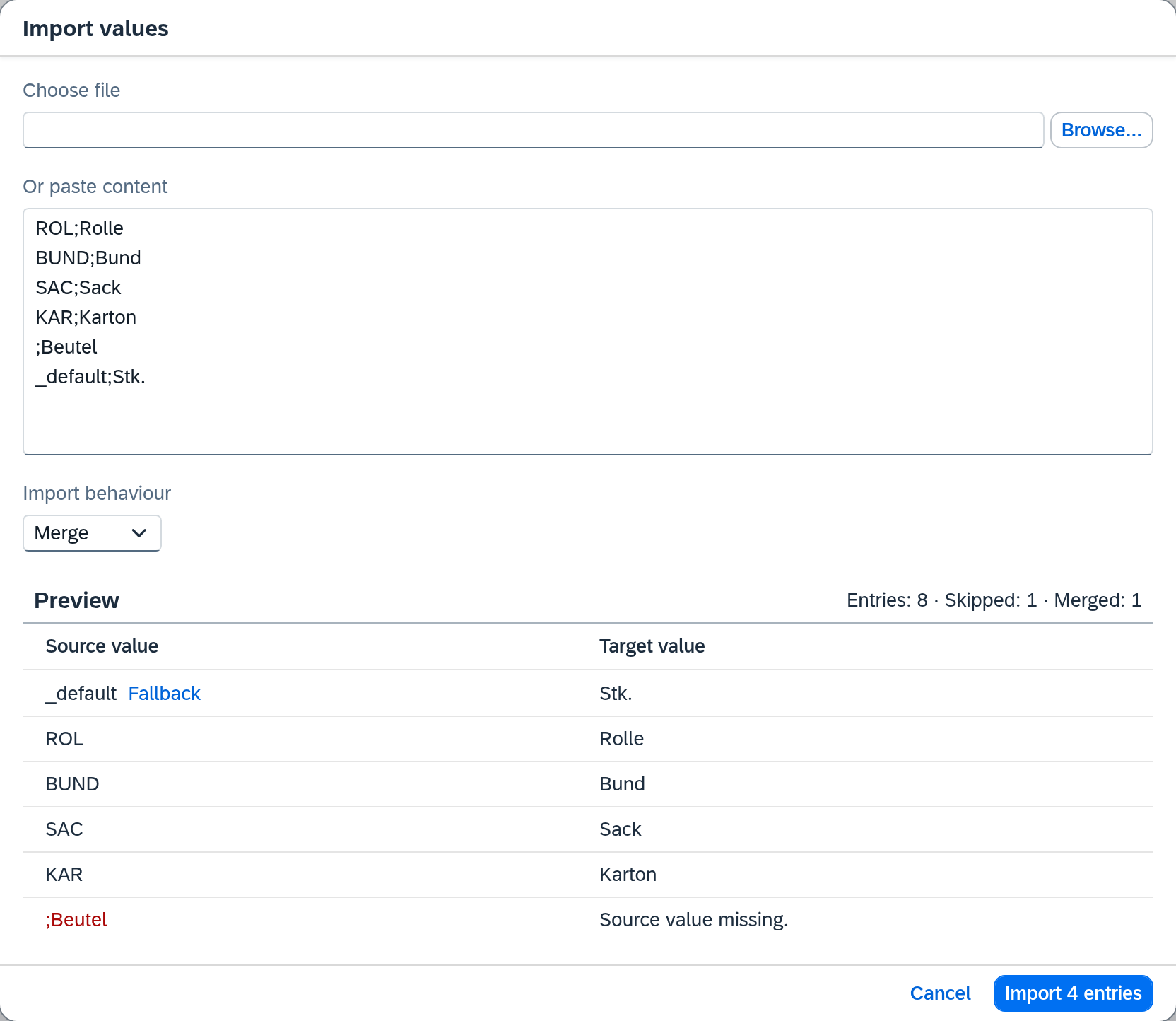
Import values in the entries header lets you take over many pairs at once instead of typing them one by one. The dialog accepts either a file (CSV, TXT, or TSV, at most 5 MB) or pasted text — a chosen file ends up in the same text field, so you can review and correct its content before importing.
Two columns per line are expected: source value and target value. Xchange detects the delimiter itself — tab, semicolon, or comma, whichever occurs in the majority of the lines. A line with the source value _default does not set an entry but the fallback value.
| Import behaviour | Effect |
|---|---|
| Merge | Existing entries are kept. A source value the table already knows is overwritten in place; new source values are appended. The fallback value stays unchanged as long as the input contains no _default line. |
| Replace | All existing entries and the fallback value are overwritten. If the input contains no _default line, no fallback value is set afterwards. |
The preview shows the result before you apply it. Above it, the summary reads Entries · Skipped · Merged: how many entries the table holds after the import, how many lines could not be read, and how many existing entries are overwritten in the process. Unreadable lines — without a delimiter, without a source value, or with more than two columns — appear in red with the reason and are skipped; they do not hold up the import. The button at the bottom states how many lines of the input will be taken over.
The import only changes the draft: until you confirm, the value table is untouched, and the result is then saved automatically like any other change.
Fallback value
The Use fallback value option defines what is returned when no entry matches the source value. When enabled, the entered fallback value is returned for every source value not covered by an entry. When disabled, an unmatched source value is left unchanged.
Used in routes
Next to the fields, Used in routes lists every route that uses this value table in its mapping — grouped by connection, each row with the route's sync object and an icon for its direction. Clicking an entry opens the route. If no route uses the table, it shows Not used.
Delete value table
A value table can only be deleted if no route still uses it. If it is in use, Delete opens a warning with the number of referencing routes instead of the confirmation — the value table is kept until the references are removed. Which routes those are is shown by Used in routes.