Create a value table and use it in a mapping
A value table translates source values into target values. When a field in a mapping hits a value from the source system, Xchange replaces it with the stored target value. This keeps business-level translations maintainable in one central place instead of scattered across individual routes. This guide creates a value table and wires it into a mapping.
The running example is the table Mengeneinheiten Webshop: it translates SAP unit-of-measure codes into the spelling the web shop expects — ST → Stk., KAR → Karton, PAL → Palette.
What you need
- Access to the Value Tables page.
- A route with a mapping in which you want to translate a field — see Create a mapping.
- The permission Configuration — Mapping at level Full. Without it, the list and detail view are read-only.
Xchange saves every entry automatically. Your changes go into the draft and take effect only when it is activated.
Create a value table
- Open the Value Tables page and click New value table (top right). Only a Name is asked for — if you enter a name already in use, a warning appears, but you can still confirm. Create opens the detail view.
- Fill in the entries. Add entry adds a row where you enter a Source value and a Target value. The source value must be unique within the table, and neither field may be empty. The comparison during mapping is exact — case and whitespace must match.
- Set a fallback value (optional). If you enable Use fallback value, the entered value acts as the fallback for every source value no entry covers. If it is off, an unmatched source value passes through unchanged.
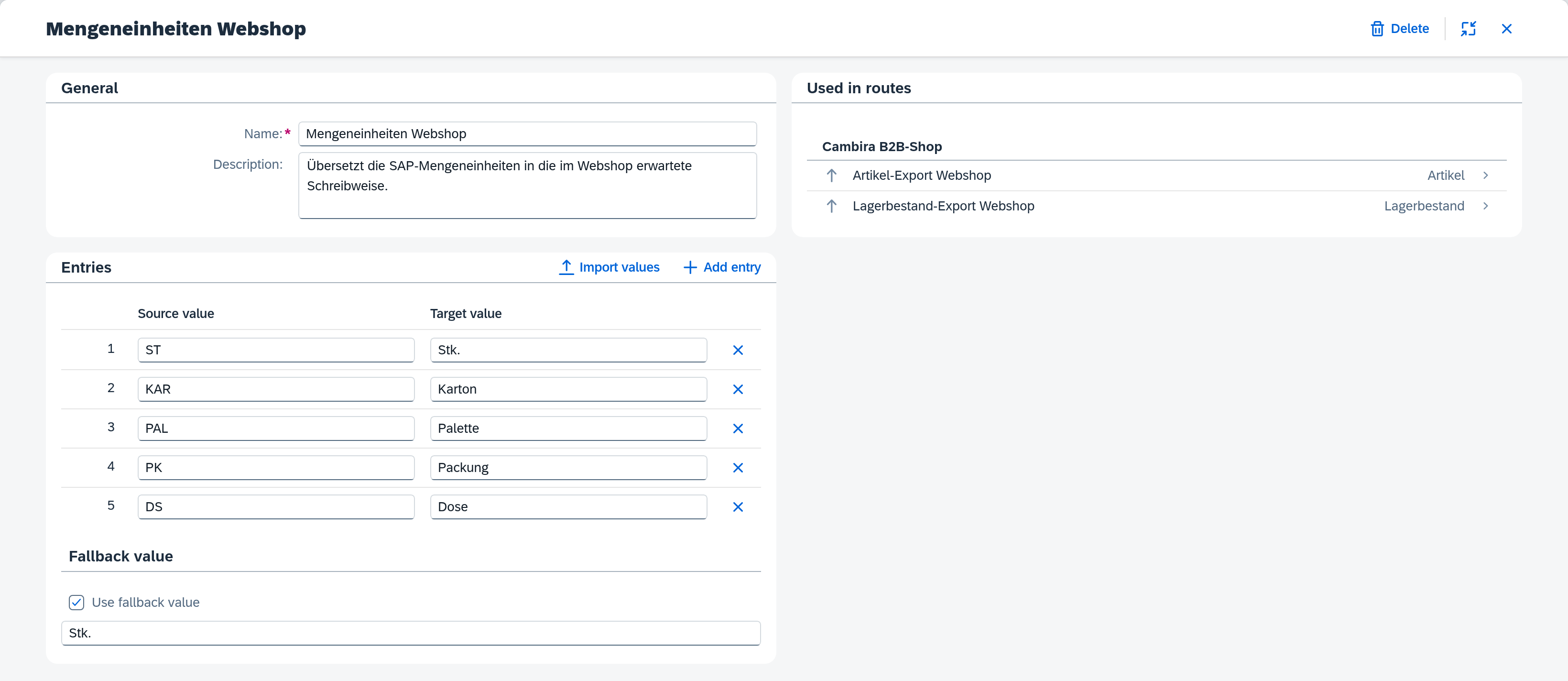
The full field description — including deletion and use by routes — is in the Value Tables reference.
Use it in a mapping
A value table is applied as the transformation of a target field:
- Open the route, switch to the Mapping tab, and open the target field row's field details via its gear icon.
- Choose Value table as the Transformation. A Value table field then appears in which you select the table you created.
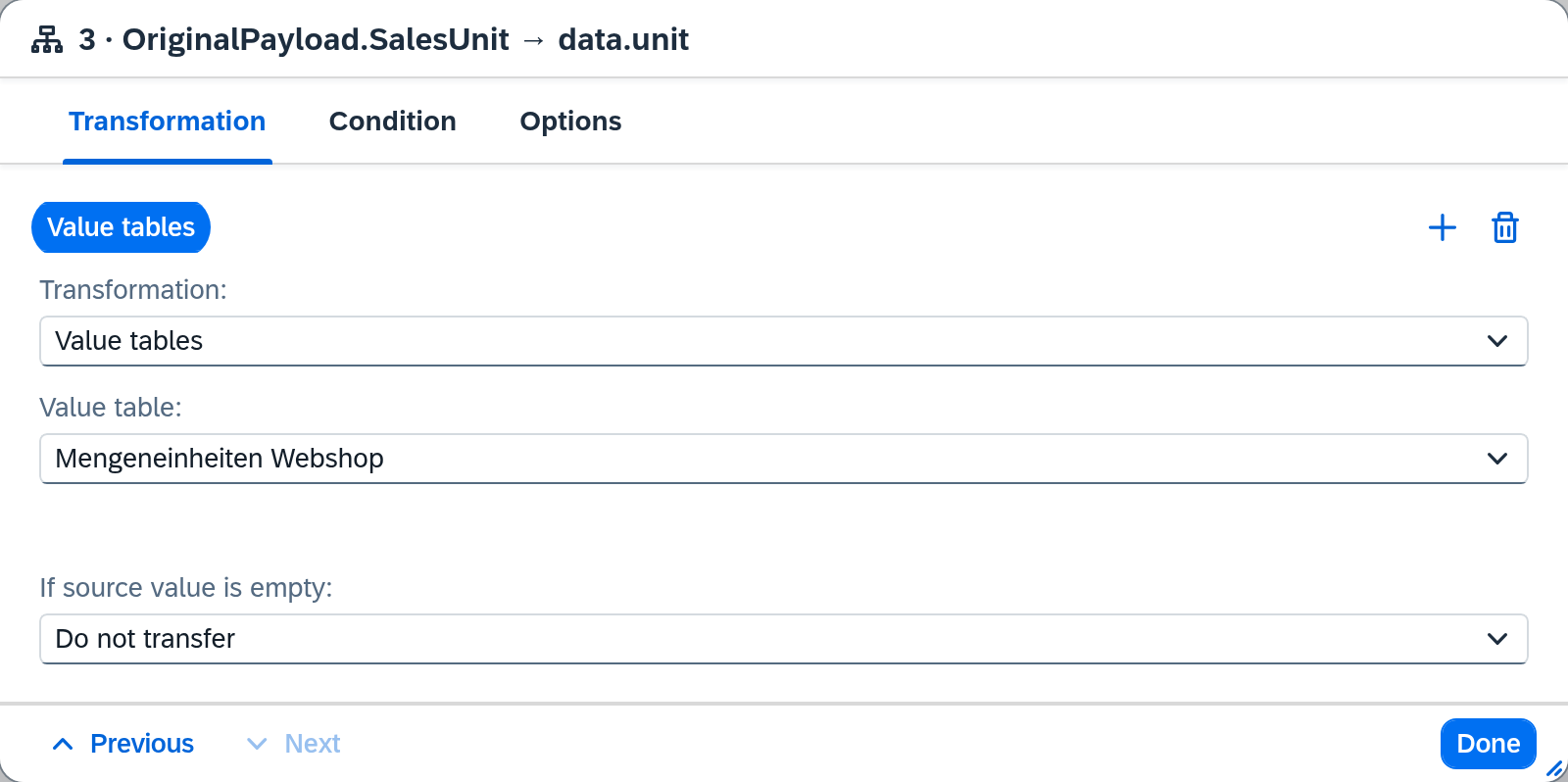
At run time, Xchange then looks up the field's source value in the table and writes the matching target value. For a value with no matching entry, the table's fallback value applies — or, if none is set, the value passes through unchanged.
Activate
The translation takes effect only once you activate the draft. Review it first via the Configuration Snapshots and then activate it. The full flow is described in the guide Activate configuration changes.
What comes next
When many pairs arrive at once — a list out of the target system, say — do not retype them: Import values into a value table shows the way via file or clipboard.