Create a route
A route is the central configuration object: it defines which data is exchanged between SAP Business One and an external system. This guide walks through creating a route — from the New route button to the open editor. Configuring it afterwards (source data, mapping, automation or dispatch rules) is covered by the linked follow-up steps.
What you need
- A connection to the external system the route exchanges data with. If there is none yet, the creation dialog points to creating one at that spot.
- The Configuration — Routes permission at the Full level. With Read you see the page but cannot create or change anything.
Which combination do I need?
A route has a direction (Import or Export) and a type (Processing or Dispatch). This yields three valid combinations — choose by goal:
| If you want to … | Direction | Type |
|---|---|---|
| send data from SAP Business One to an external system | Export | Processing |
| bring data from outside into SAP Business One | Import | Processing |
| classify an incoming message by rules and forward it to several target routes | Import | Dispatch |
There is no export dispatch. Why the combinations relate this way is explained in the Routes concept.
Create a route
- Open the Routes page and click New route (top right).
- Enter a Name (required, up to 150 characters) — for naming, see the tip below.
- Choose the Direction — Import or Export.
- Choose the Type — Processing is the regular case. (For a dispatch route see Special case below — for that, choose Import first, then Dispatch becomes selectable.)
- Check the Data origin — where the route gets its records from; see Which data origin? below. With Export and with Dispatch there is only one possible value, already selected; only with Import + Processing do you make a choice here.
- Choose the Object type: pick it from the suggestion list or type a new name to create one — for consistent naming, see the tip below.
- Choose the Connection the route communicates over. The existing external connections are offered. If none is configured yet, a "No connection configured yet." hint appears with a Create connection link.
- If a route with the identical combination of direction, type, object type, and connection already exists, a warning shows its name — creation is still possible.
- Click Create. The route is created in the draft and the editor opens.
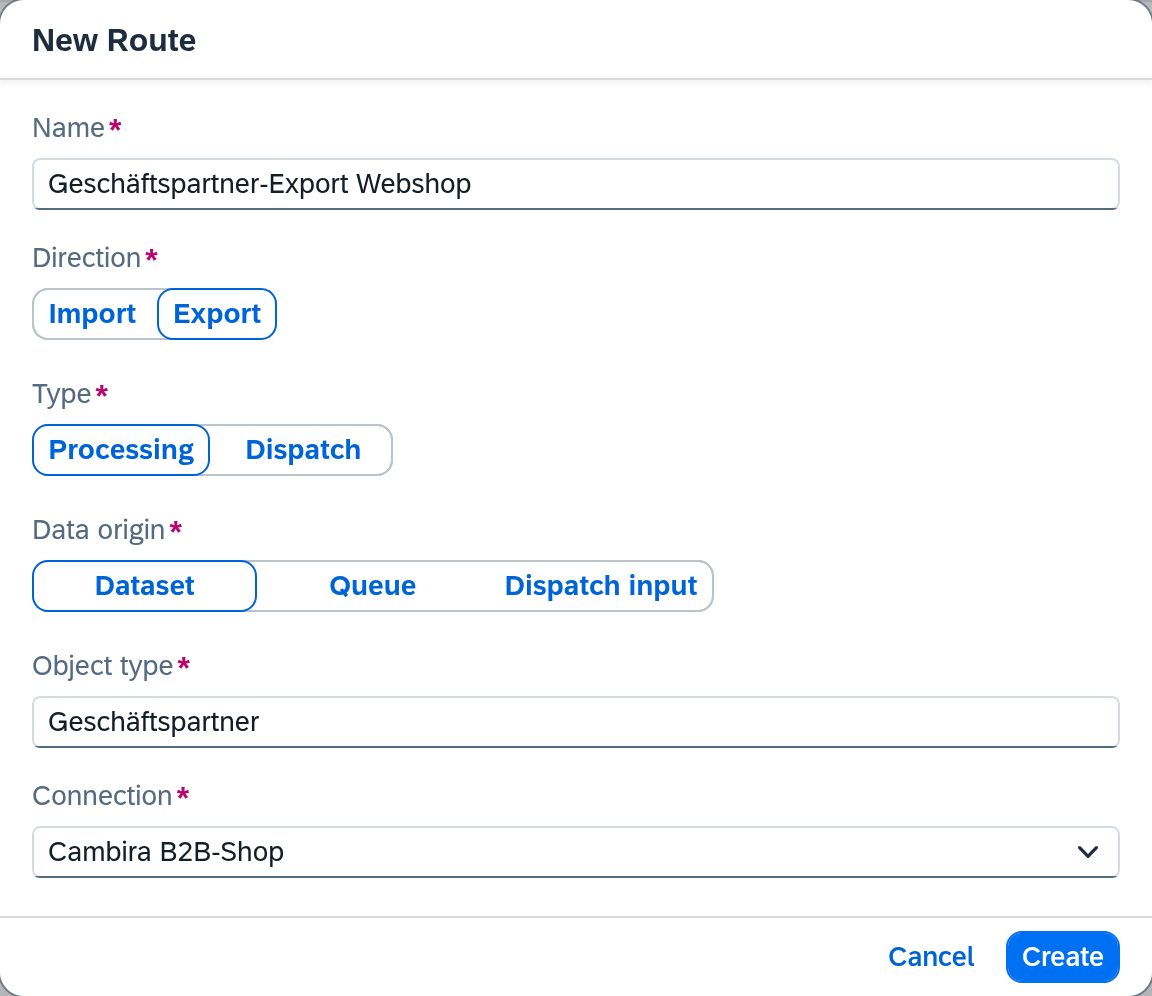
Direction, type, data origin, and object type are fixed after creation and can no longer be changed; name and connection can be changed at any time.
Which data origin?
The data origin answers the question of how the records reach the route. It is the central switch for the rest of the configuration: it determines what has to be set on the Source data tab and which run types the automation offers.
| Do you want … | Data origin |
|---|---|
| the route to fetch from an endpoint itself and pull the records | Dataset |
| the route to process what was delivered to it | Queue |
| the route to get its data from a dispatch route | Dispatch input |
With Export + Processing only Dataset is possible, with Import + Dispatch only Queue — the dialog then shows that value already selected. Only with Import + Processing do you choose between Queue and Dispatch input: Dispatch input is the right choice if the route is to serve as the target of a dispatch route.
Since the data origin is fixed after creation, this decision is worth making up front — if a route is to get its data differently later, create it anew.
Route: The pattern that has proven itself is ‹Object type›-‹Export/Import› ‹Target system› — e.g. Artikel-Export Webshop or Bestellung-Import Webshop; for dispatch routes ‹Collective term›-Verteilung ‹Target system›, e.g. Belegeingang-Verteilung Webshop. Use the object type in the singular and a short name for the target system rather than the full connection name — that way the name carries direction, object type, and target at a glance. This matters because many views show a route by its name only; the concept explains why.
Object type: For identical business objects, always use the same object type from the suggestion list rather than typing a new name — this keeps routes, mappings, and reports consistent. Name new object types in the singular, based on the SAP Business One object (e.g. Artikel, Geschäftspartner). Since the object type is fixed after creation, it pays to check the list first — background: Routes — Object type.
Special case: dispatch route
A dispatch route transfers no business records itself; instead it evaluates an incoming message by rules and forwards it to target routes. When creating one:
- The type Dispatch becomes selectable only once the direction is Import (a dispatch route is always an import route).
- There is no object type — the field is omitted.
- The data origin is fixed at Queue — a dispatch route processes what was delivered to it.
Otherwise the flow is identical: choose name and connection, click Create.
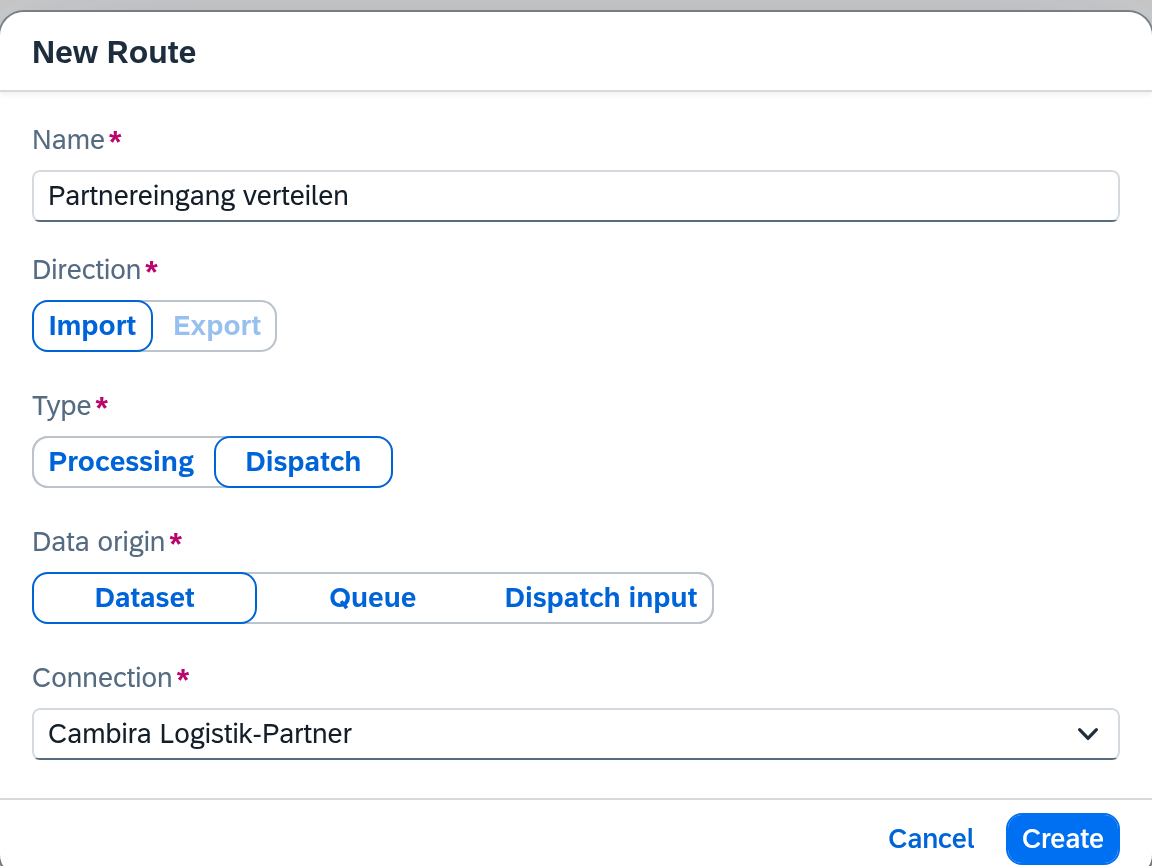
You set up the dispatch rules themselves afterwards — see Set up dispatch.
After creation
A freshly created route is paused and not yet operational — it does nothing at first. Configure it further via the editor tabs, then activate the draft:
- Processing route: define the source data, the mapping, and automate the synchronization.
- Dispatch route: set up dispatch.
- Finally: activate configuration changes so the route takes effect.