Compare changes before you activate
A draft collects changes over days, often from several people. Before activating it is therefore rarely certain what is in it — and activation is the moment when all of it goes live at once. Compare holds the draft against the active configuration and answers the question beforehand.
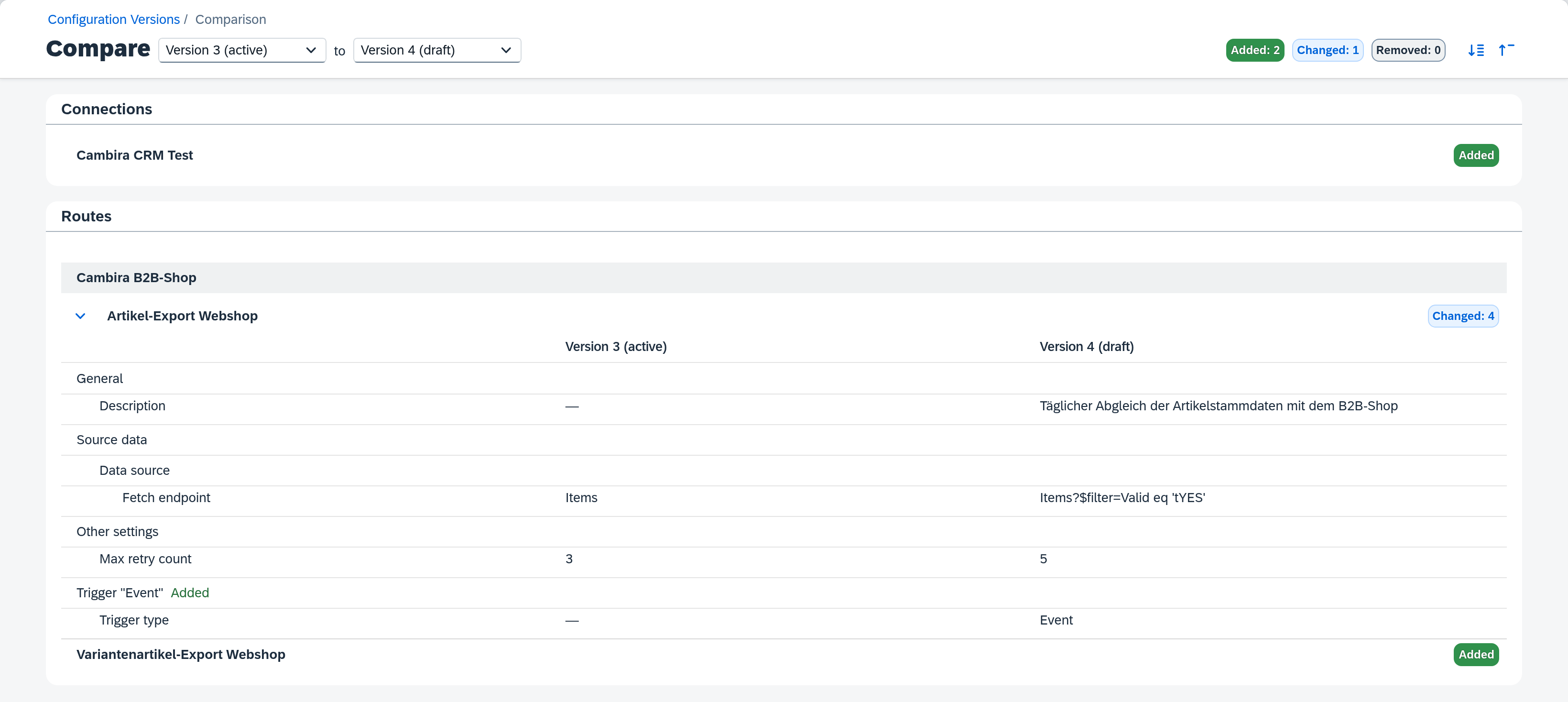
The running example is the draft Version 4 against the active Version 3: the item export has been worked on over the past few days, a connection for a CRM test system was added, and somebody has started a route for variant items.
What you need
- A draft and an active configuration. Without an active state there is nothing to compare against, and the Compare button does not appear in the first place.
- The Configuration permission (Read is enough). A comparison changes nothing and shows nothing the detail pages do not already show you — unlike Activate, it does not require the Full level.
Open the comparison
Open the Configuration Versions page and click Compare in the Draft section. The comparison is a page of its own; the breadcrumb Configuration Versions › Comparison leads back.
The heading names the two states being compared — Compare Version 3 (active) to Version 4 (draft) — and is the selector at the same time. The older state always sits on the left, the newer on the right.
Read the three counters first
On the right of the title row sit three counters: added, changed, removed. In the example 2 · 1 · 0. These numbers count top-level objects — connections, routes, value tables — not their parts. A route with twenty fields changed counts here as one changed route.
They are the fastest test: does the number match what you expected? If it says one under removed and you know of no deletion, that is exactly the point at which the comparison earns its keep.
Walk the objects
The listing is grouped into connections, routes, and value tables, in that order; routes are further grouped by connection so that two routes sharing a name can be told apart. Routes without a connection are collected in a Without connection section at the end.
Changed objects expand. Inside sits a table with three columns: the name of the field and one column per compared state. A badge on the object's header names how many fields differ — it counts fields, where the counters above count objects. In the example, Artikel-Export Webshop shows a new description, a more narrowly scoped fetch endpoint, and an additional trigger of type Event. The raised retry count sits under Other settings — where the comparison collects fields that have no input of their own in the editor. Two icon buttons beside the counters expand or collapse everything at once.
Added and removed objects are named but do not expand — they have no counterpart to compare their fields against. In the example those are the connection Cambira CRM Test and the route Variantenartikel-Export Webshop.
The comparison shows line by line what the draft contains — it does not say whether it is finished. The half-built route for variant items in the example becomes active with the same activation as everything else; activating part of a draft is not provided for. Whatever is not meant to go out yet belongs paused or deleted before the activation.
Nothing can be edited from the comparison. Whatever you want to correct, you open on its own detail page; afterwards you return here via Compare.
Compare other pairs
The two dropdowns in the heading let you set any other pair — e.g. an archived state against the active configuration, to see what has changed in total since then. A version that would reverse the order is not offered in the opposite dropdown.
There is a way round as well: clicking a row in the archive opens the comparison of that version against its predecessor, and thereby shows what was changed when that version was activated.
What comes next
If the comparison matches your expectation, validate and activate the draft — see Activate configuration changes.