Recover after a detected database change
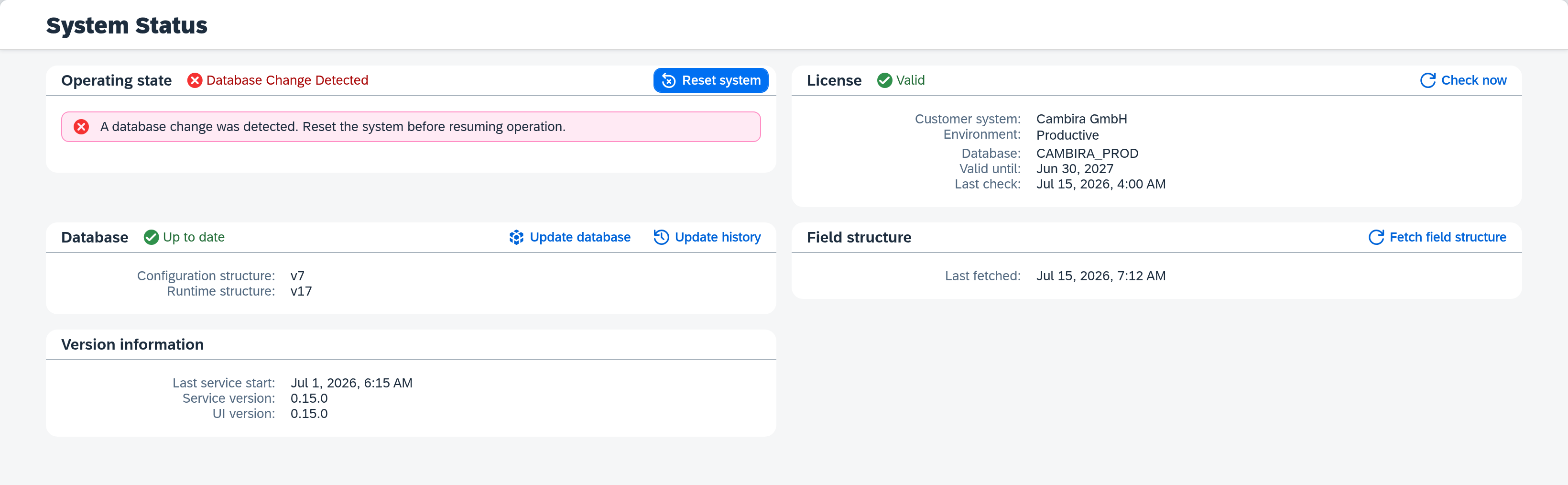
Xchange detects when the connected database has been swapped externally — e.g. when a production database is copied to a test environment. In this case, Xchange halts processing and reports the operating state Database change detected (red) on the System Status page. This guide leads you back from this state to normal operation.
Background: processing data such as queues, runs, and progress state relate to a specific database. After a swap, they no longer match — so Xchange blocks processing until the system has been deliberately reset.
What you need
- The System permission at the Full level — only then is the Reset system action available.
- The connection credentials at hand: the reset deletes them, and you re-enter them afterward.
Recognize the database change
You recognize the state by the red operating state — both in the Overview and the header, and on the System Status page with the message "A database change was detected. Reset the system before resuming operation." As long as this state persists, Xchange does not process any data.
Reset the system
Open the System Status page. In the Operating state section, the Reset system action is now available in this state.
- Click Reset system and confirm the prompt.
- A modal progress dialog shows the progress. Xchange deletes all processing data and the connection credentials during this process.
- Once it completes, the operating state is no longer blocked; the configuration snapshot is set to draft.
If a draft was already open before the reset, it is not lost: Xchange parks it, and the confirmation dialog announces this beforehand. How to bring it back is described below under restore operation.
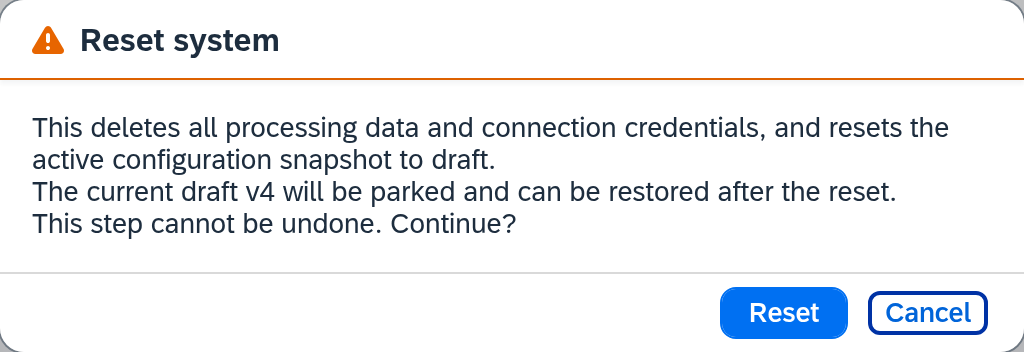
The reset cannot be undone. Your configuration — routes, mappings, and the connections themselves — is preserved, and so is an open draft: it is parked and can be brought back afterward. What is lost are the processing data and the connection credentials.
The page's other actions address different failure patterns: Repair event filter only rebuilds the internal processing state, Update database brings the database to the expected state. For a detected database change, Reset system is the right action.
After the reset: restore operation
The reset cleans up — you restore operation in two steps. If a draft was parked along the way, a third one follows:
- Re-enter connection credentials. Open each connection and re-enter its connection credentials — they were deleted during the reset. Then verify the connection using the connection test. The procedure is described in Create a connection.
- Activate the configuration snapshot. The snapshot is set to draft. Review it via Configuration Snapshots and activate it — see Activate configuration changes. This makes Xchange resume processing.
- Bring the parked draft back. The Parked drafts section on the Configuration Snapshots page is where you do this. Clicking the row shows the comparison first — so you see what is in that draft before you decide. Restore turns it back into the open draft, Discard deletes it.

The third step deliberately comes after the second: there is always at most one open draft, and as long as the one from step 2 is still open, Xchange refuses the restore with a short message.