Set Up Recurring Synchronization
This guide shows how to set up a route so that it synchronizes data continuously and automatically — and which combination of trigger and run type suits which purpose. The individual fields are described in the Automation reference; here it is about the right mode of operation.
Two terms determine the behavior:
- The trigger defines when a route runs (scheduled or in response to an event).
- The run type defines which data a run processes (incremental, full, or draining the queue).
What you need
- A fully configured route with source data and mapping. Automation is the last step, not the first.
- The Configuration — Routes permission at the Full level for the trigger, and Operations — Execution at the Full level for the automation switch.
The three steps of every automatic route
Regardless of the chosen mode of operation, it is always the same three steps:
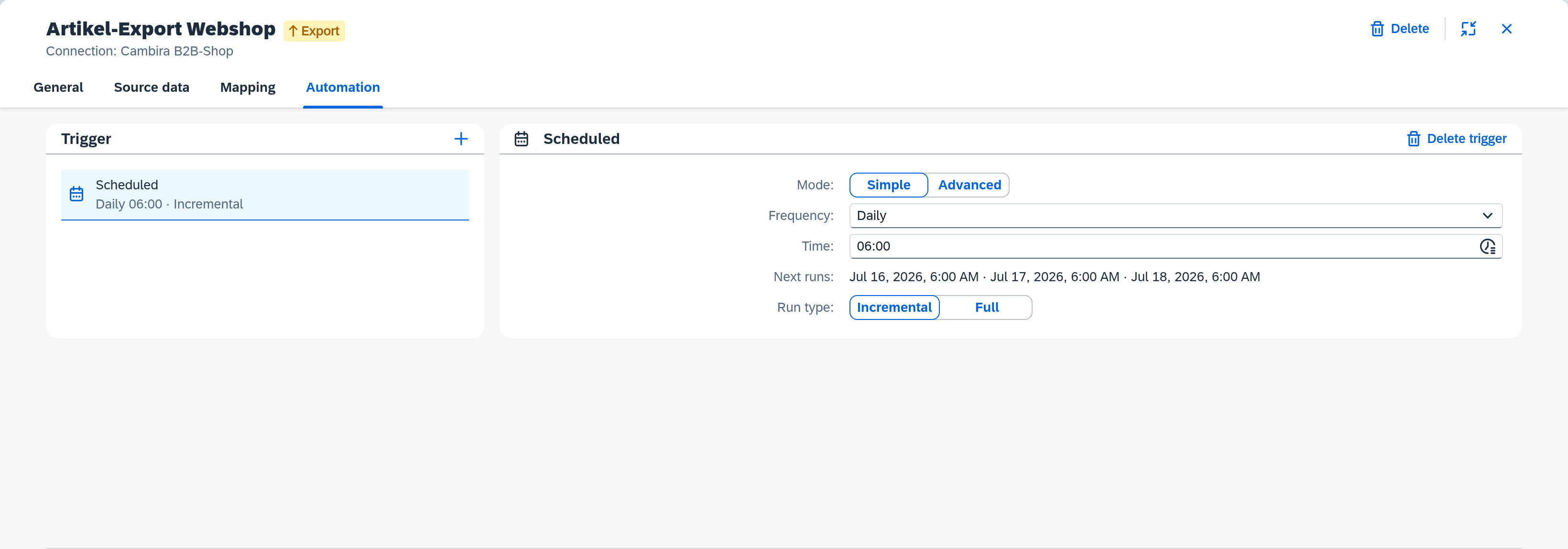
- Configure the trigger — in the route editor on the Automation tab. Without a trigger the route only runs manually.
- Activate the draft — trigger changes land, like every configuration change, in a draft first and take effect only when it is activated (see Activate Configuration Changes).
- Turn on automation — on the Execution page, set the route's automation switch to Active.
A newly created route is Paused by default on the Execution page — its trigger only takes effect after you deliberately switch automation to Active. A configured trigger alone does not start anything.
Synchronize an export automatically
Export routes can run automatically in two ways — depending on how up to date the data in the target system must be:
| Mode of operation | Trigger | Suitable when … |
|---|---|---|
| Near real time | Event | the change should reach the target system immediately |
| At a cadence (batch) | Scheduled, run type Incremental | a delay of a few minutes is acceptable |
In both cases an additional regular full run as a safety net is recommended (see below).
Near real time: event trigger
A trigger of type Event reacts directly to operations in SAP Business One: as soon as the chosen object is created or changed, it kicks off the export of the affected record. To do so, add an event trigger, choose the object type to evaluate under Object, and at least one operation type under Trigger on (Created, Changed). Optionally, a filter narrows down which events actually trigger.
This keeps the target system up to date with minimal delay, but only transfers what SAP reports as an event.
At a cadence: scheduled incremental
A scheduled trigger with run type Incremental transfers only the records changed since the last run, at a fixed cadence. Choose the cadence under Frequency (e.g. Every 30 minutes). An incremental run requires Xchange to know the position of the last run. There are two ways to that: either a change filter on the route, which defines what counts as "changed since the last run" — or a connection that carries the position itself and sends it back on the fetch. In the second case there is nothing to set on the route.
This is the resource-friendly standard for ongoing operation.
Safety net: regular full run
Regardless of the chosen mode of operation, add a second, scheduled trigger with run type Full that runs at a larger interval (e.g. daily at a quiet time). A full run ignores the progress of previous runs and reconciles the entire data set within the scope again. This catches changes that were not captured between the incremental or event-driven runs.
You also need a full run specifically after a change to the mapping: to lift the already transferred data set onto the new mapping, start a one-off full run — via Execution → Start run → Full.
If items from SAP should appear in the web shop as soon as possible, combine an Event trigger on the object type Item (on Created and Changed) with a daily full run at night as reconciliation. If an update every few minutes is enough, replace the event trigger with a scheduled Incremental trigger (e.g. Every 30 minutes) and keep the nightly full run.
Process an import automatically
Import routes have no event trigger. A route with the data origin Queue fetches its data from an external queue; set up a scheduled trigger with run type Drain queue for this: at the configured cadence, Xchange repeatedly fetches from the source until no further entry is delivered. With Max items per cycle you cap how many entries a run processes — useful for sources with large queues so that a single run does not occupy processing for too long; remaining entries are fetched in the next cycle.
Choose the interval according to how up to date the data must be: frequent (e.g. Every 5 minutes) for timely intake, less frequent for non-critical bulk data.
Combining multiple triggers
A route may have multiple triggers, and different triggers can start different run types. That is exactly the basis of the recommended pattern — a reactive or frequent trigger for currency, a full run at a larger interval as reconciliation:
| Goal | Trigger combination |
|---|---|
| Highest currency | Event + scheduled Full (e.g. nightly) |
| Frugal cadence | Scheduled Incremental + scheduled Full (e.g. nightly) |
Using Event and scheduled Incremental at the same time, on the other hand, offers little — both catch the same changes. Choose one of the two as the main cadence and complement it with the full run.
Dispatch routes
Target routes of a dispatch receive their trigger (Dispatch input) automatically as soon as a dispatch rule targets them — no separate trigger needs to be set up here.